
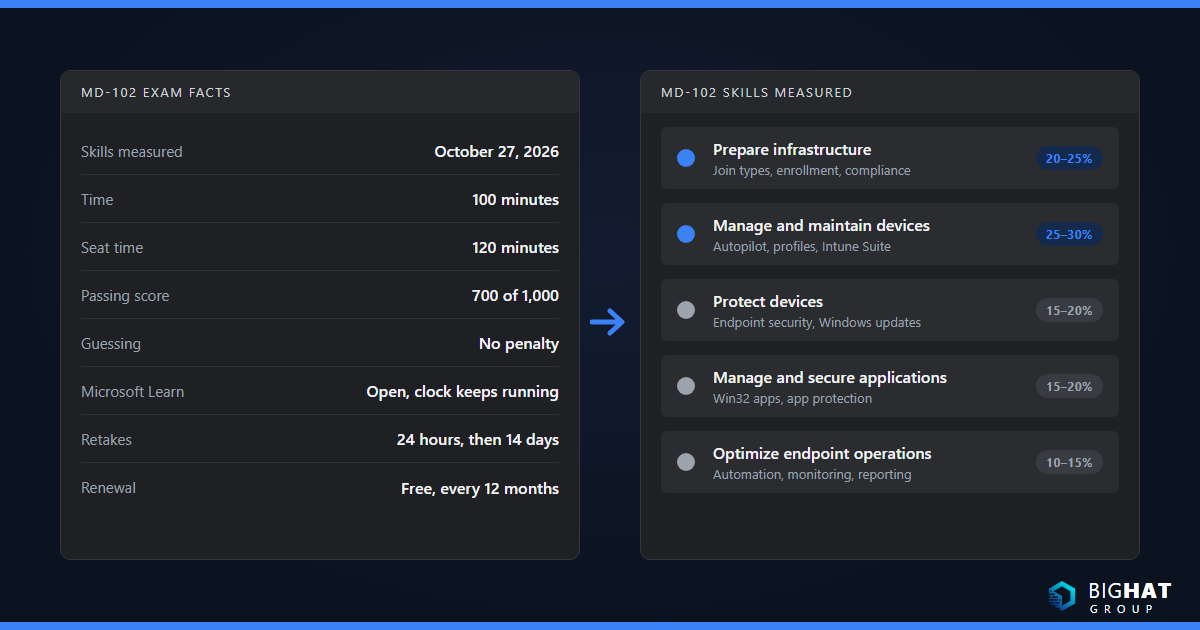
Microsoft rebuilt MD-102 again for October 27, 2026, and this time the exam title changed with it. If you are studying from a 2024 blueprint you will spend hours on material that is no longer weighted the way you think, and you will miss the Intune Suite, Windows 365, hotpatch and Security Copilot objectives that were added. This guide is the web page itself: the current domains and weights, what each objective actually tests, the Microsoft Learn documentation I would read for each one, an eight-week plan with labs you can run in a free trial tenant, and the facts that cost experienced admins points because a default changed under them. It follows the same shape as my AI-103 study guide and CCAF study guide: exam overview, domains with weights, study notes, traps, FAQ. Every fact below was checked against Microsoft Learn in late October 2026, and the sources are listed at the end.
What MD-102 covers and who should take it
Exam MD-102 is now titled Managing and Securing Microsoft 365 Endpoints by using Intune. Passing it earns Microsoft 365 Certified: Endpoint Administrator Associate, and that credential name did not change. Microsoft updated the English exam on October 27, 2026; localized versions follow about eight weeks later. The official MD-102 study guide is the document to keep open while you prepare, and every section below maps to it.
The audience profile is blunt. You are expected to have subject matter expertise managing devices and client applications in a Microsoft 365 tenant by using Intune “and agentic tools and workflows”. The tool list is Intune, the Intune Suite, Windows Autopilot, Microsoft Defender for Endpoint, Microsoft Entra ID, PowerShell, Microsoft Graph and Windows 365, and Microsoft adds that you should understand Security Copilot, Intune agents and Defender XDR. Microsoft also notes that most questions cover generally available features, but preview features can appear if they are commonly used.
In my experience the people who pass comfortably have run Intune in production for a year, shipped at least one Autopilot rollout, and fixed a compliance or update problem under pressure. The people who struggle have read about Intune but never watched an Enrollment Status Page fail. If that is you, build the lab first and read second. The exam is a good fit for desktop administrators moving from Configuration Manager and Group Policy, Microsoft 365 administrators who inherited device management, consultants who need a current credential, and Windows 365 or Azure Virtual Desktop administrators who want the Intune depth those platforms now assume.
Exam facts at a glance
| Item | Detail (checked October 2026) |
|---|---|
| Exam | MD-102: Managing and Securing Microsoft 365 Endpoints by using Intune |
| Certification | Microsoft 365 Certified: Endpoint Administrator Associate (intermediate, administrator role) |
| Skills measured | Version effective October 27, 2026 |
| Time | 100 minutes to complete; Microsoft allots 120 minutes of seat time for associate exams without labs |
| Questions | Not published per exam; Microsoft says most exams contain 40 to 60 questions |
| Passing score | 700 or greater on a 1 to 1,000 scale; no penalty for guessing |
| Delivery | Pearson VUE, proctored; the exam may include interactive components |
| Languages | English, Chinese (Simplified), German, Spanish, French, Japanese, Portuguese (Brazil) |
| Price | Based on the country or region where the exam is proctored; see the Microsoft certification page |
| Retakes | 24 hours after a first fail, then 14 days between attempts, maximum five attempts in 12 months |
| Renewal | Every 12 months by free online assessment |
| Practice | Free practice assessment and an exam sandbox on the certification page |
Register with a personal Microsoft account. Microsoft warns that if you register with a work or school account, your exam records are lost and unrecoverable when you leave that organization.
The five domains and their weights
| # | Domain | Weight |
|---|---|---|
| 1 | Prepare infrastructure for devices | 20–25% |
| 2 | Manage and maintain devices | 25–30% |
| 3 | Protect devices | 15–20% |
| 4 | Manage and secure applications | 15–20% |
| 5 | Optimize endpoint operations by using automation, monitoring, and reporting | 10–15% |
Two things changed in the October 2026 version that matter for planning. The application domain was renamed “Manage and secure applications”, and the change log marks seven functional groups as having “minor” changes: enrollment, Windows client deployment, device configuration profiles, Intune Suite add-ons, remote actions, app deployment, and monitoring and health. Those are the groups that hold the Windows Backup, Quiet Time, Advanced Analytics and tenant health alert bullets. Identity and compliance, endpoint security, device updates, app protection and automation are unchanged, so the hotpatch and Security Copilot agent bullets carry over from the previous version. Domains 1 and 2 together are 45 to 55 percent of the exam, so identity, enrollment, Autopilot and configuration deserve half your time.
The official training is Course MD-102T00-A: Manage and secure Microsoft 365 endpoints by using Intune, a five-day instructor-led course. The same material is on Microsoft Learn as eight self-paced learning paths:
- Prepare infrastructure for devices using Microsoft Intune and Microsoft Entra ID (5 modules)
- Manage and maintain devices using Microsoft Intune (4 modules)
- Manage applications using Microsoft Intune (5 modules)
- Protect devices using Microsoft Intune (6 modules)
- Automate and optimize endpoint management using Microsoft Intune (3 modules)
- Support operational excellence and readiness using Microsoft Intune (3 modules)
- Extend endpoint capabilities using Microsoft Intune Suite (4 modules)
- Deliver cloud-hosted desktops using Azure Virtual Desktop and Windows 365 (4 modules)
Paths 7 and 8 are new territory for anyone who studied the 2023 version of this exam. Do not skip them.
Domain 1: Prepare infrastructure for devices (20–25%)
Join types and enrollment
Microsoft Entra ID offers three device identities: registered, joined and hybrid joined. Registration is for bring-your-own and mobile devices, join is for organization-owned Windows devices, and Microsoft describes hybrid join as “an interim step on the road to Microsoft Entra join”. Expect scenario questions where the right answer is Entra join even when the organization still has Active Directory.
Automatic MDM enrollment requires Microsoft Entra ID P1 or P2. You configure it in the Intune admin center under Devices > Device onboarding > Enrollment > Windows > Automatic Enrollment, setting the MDM user scope to None, Some or All and leaving the WIP user scope at None. A user in both scopes gets MDM enrollment on a corporate-owned device, but on a personal device the WIP user scope takes precedence and the device does not enroll in Intune, which is a classic distractor.
For Apple and Android the objectives call out Apple Business Manager integration for corporate macOS and iOS enrollment, and Samsung Knox Mobile Enrollment or Google zero-touch for Android, plus the Android Enterprise profile types: fully managed, dedicated and corporate-owned with a work profile. Know which profile fits a shared kiosk versus a personally enabled corporate phone.
Roles, scope tags and multi-admin approval
Intune role-based access control has built-in roles (Application Manager, Endpoint Security Manager, Help Desk Operator, Intune Role Administrator, Policy and Profile Manager, Read Only Operator, School Administrator, plus Endpoint Privilege Manager and Reader) and Cloud PC Administrator and Cloud PC Reader when the tenant has Windows 365. A role assignment has three parts: members (admin groups), scope groups (the users and devices they can manage) and scope tags (the objects they can see). The Entra roles Global Administrator and Intune Administrator have full read and write access, and Microsoft explicitly says not to use either for day-to-day work. In Graph and PowerShell the Intune Administrator role still appears as Intune Service Administrator.
Multi Admin Approval protects apps, compliance policies, settings catalog configuration policies, device actions (wipe, retire, delete), role-based access control, Windows scripts and device categories. An administrator cannot approve their own request, a Global Administrator’s change still needs a second approver, the approver group must be a security group that is itself a member of an Intune role assignment, and a request that is not completed within three days expires.
Compliance, Conditional Access, Windows Hello and LAPS
Compliance policy has two layers. The tenant-wide Compliance policy settings under Endpoint security > Device compliance include Mark devices with no compliance policy assigned as, which defaults to Compliant, and Compliance status validity period (days), which defaults to 30 and accepts 1 to 120. Per-platform device compliance policies then carry the rules and the actions for noncompliance: mark noncompliant (default), send email, remotely lock, retire, or send a push notification. Conditional Access consumes the result through the grant control Require device to be marked as compliant.
Windows LAPS is managed through Endpoint security > Account protection. It needs only Intune Plan 1 and Microsoft Entra ID Free, but Entra-joined devices require that you first enable LAPS under Identity > Devices > Overview > Device settings in the Entra admin center; hybrid-joined devices do not. A device backs up to Entra ID or on-premises Active Directory, never both. The remote task Rotate Local Admin Password is not included in any built-in Intune role or the Entra Intune Administrator role; you grant it through a custom role. Windows 11 24H2 adds automatic account management.
Domain 2: Manage and maintain devices (25–30%)
Autopilot versus Autopilot device preparation
This is the single most tested distinction in the current exam. Microsoft’s comparison page is worth memorizing:
| Capability | Autopilot device preparation | Windows Autopilot |
|---|---|---|
| Modes | User-driven, automatic | User-driven, pre-provisioned, self-deploying, existing devices |
| Join types | Microsoft Entra join only | Entra join and Entra hybrid join |
| Device registration (hardware hash) | Not required | Required |
| Admin configures | Device preparation policy plus a device security group owned by Intune Provisioning Client | Deployment profile plus Enrollment Status Page |
| Apps during OOBE | Up to 25 apps and 10 PowerShell scripts | Up to 100 apps |
| Win32 and LOB in one deployment | Yes | No |
| Windows versions | Windows 11 24H2 or later (or 22H2/23H2 with KB5035942) | Supported Windows 10 and 11 |
| Also supports | GCC High and DoD, near real-time reporting | Autopilot Reset, HoloLens, Teams Rooms, DFCI, co-management |
Self-deploying mode joins Entra ID without user credentials, requires TPM 2.0 with device attestation, supports Entra join only, and fails on virtual machines with error 0x800705B4. It does not set a primary user. Pre-provisioning also requires TPM 2.0 and physical hardware, supports both Entra join and hybrid join, starts when the technician presses the Windows key five times at the first OOBE screen, and ends with Reseal. Microsoft says to wait at least 90 minutes before the user flow and to run it within six months. Autopilot licensing is satisfied by Microsoft 365 Business Premium, F1/F3, A1/A3/A5, E3/E5, EMS E3/E5, Intune for Education, or Entra ID P1/P2 plus Intune.
The Enrollment Status Page tracks device preparation, device setup and account setup. Defaults to know: the time-out is 60 minutes, you can block the device until all or selected apps install (up to 100 blocking apps), a tenant holds at most 51 ESP profiles (default plus 50), and new profiles default Install Windows quality updates to Yes, which adds 20 to 40 minutes to provisioning. Do not mix LOB (MSI) and Win32 apps in an Autopilot ESP: both use TrustedInstaller and the Win32 install fails with “another installation is in progress”. Microsoft also recommends deploying Microsoft 365 Apps as a Win32 app when ESP tracks them.
Configuration profiles, filters and Group Policy analytics
The settings catalog is the default profile type; the exam also expects ADMX import for third-party templates and Group Policy analytics, which imports a GPO exported as XML from the Group Policy Management Console (Save report, XML, under 4 MB), shows the MDM Support percentage, and migrates supported settings into a settings catalog policy. Assignment filters are evaluated at device check-in rather than through group membership processing, run in include or exclude mode, are capped at 200 per tenant and 3,072 characters each, and use syntax such as (device.osVersion -eq "10.0.18362") and (device.manufacturer -eq "Microsoft"). Microsoft’s guidance: filters for Intune targeting, dynamic groups for Conditional Access, licensing and Autopilot profile assignment.
Intune Suite add-ons
The objectives name Endpoint Privilege Management, the Enterprise App Catalog, Remote Help, Microsoft Cloud PKI, Microsoft Tunnel for MAM and Advanced Analytics. Microsoft’s advanced capabilities page says they ship with Intune Plan 2, the Intune Suite and select Microsoft 365 bundles, and a trial runs 90 days for up to 250 users, one trial per capability per tenant, followed by a 30-day grace period. EPM uses an elevation settings policy, elevation rules policies and an elevation system settings policy; elevation types are automatic, user confirmed, elevate as current user, support approved and deny; supported files are .exe, .msi and .ps1. The Enterprise App Catalog is Microsoft-packaged Win32 apps added through Apps > All apps > Create > Enterprise App Catalog app, supported as blocking apps in ESP, and limited to 64-bit Windows. Device query runs Kusto Query Language against a single corporate-owned Windows device in real time over WNS, needs the Managed Devices/Query permission, and allows 15 queries a minute.
Remote actions
Sync, restart, retire and wipe are table stakes. The 2026 bullets add bulk actions, updating Defender security intelligence, rotating BitLocker keys, rotating local administrator passwords, KQL device queries, and collecting diagnostics including the Troubleshooting blade. Know which of these are unavailable on Windows Enterprise multi-session (covered below).
Domain 3: Protect devices (15–20%)
Endpoint security and Defender for Endpoint
Security baselines live under Endpoint security > Security baselines. As of October 2026 the current versions are Security Baseline for Windows 10 and later version 26H2, Defender for Endpoint baseline version 24H1, Microsoft 365 Apps for Enterprise version 2512, Edge version 139, and Windows 365 Security Baseline 24H1, plus a Windows 365 for Agents baseline and a preview Local AI Agent Baseline for OpenClaw. Defaults are the most restrictive option; the Defender baseline is not recommended on VMs or VDI; when a new version ships, older profiles become read-only.
The Defender for Endpoint integration is a two-portal job. In the Defender portal, System > Settings > Endpoints > General > Advanced features > Intune connection goes On; in Intune, Endpoint security > Defender for Endpoint shows Connection status (up to 15 minutes) and the compliance evaluation toggles per platform. Windows onboarding uses an endpoint detection and response policy with Auto from connector, either the preconfigured policy targeted at All Devices or a custom one; macOS, Android and iOS are manual. The compliance setting Require the device to be at or under the machine risk score offers Clear, Low, Medium and High, and Microsoft recommends Low. Build the Conditional Access policy in report-only mode first and exclude break-glass accounts.
Windows updates: rings, Autopatch and hotpatch
Intune’s Windows update management stores only policy; Windows Autopatch decides which content is approved and devices download from Windows Update. Four policy types matter: update rings, feature update policies, quality update policies (which carry expedite and hotpatch) and driver update policies. The three Autopatch-backed types require a license with the Autopatch entitlement, diagnostic data at Required, and the Microsoft Account Sign-In Assistant service not disabled, and they do not support Entra registered devices.
The update ring settings carry the numbers the exam loves: quality update deferral 0 to 30 days, feature update deferral 0 to 365 days, feature update uninstall period 2 to 60 days, deadlines for feature and quality updates 2 to 30 days, grace period 0 to 7 days, and Auto reboot before deadline recommended Yes. Windows Autopatch removed feature activation in April 2025 and now includes Autopatch groups, quality, feature and driver updates, Microsoft 365 Apps, Edge and Teams updates for Business Premium, A3+, E3+ and F3; only support requests remain E3+/F3. Hotpatch installs the monthly security update without a restart on Windows 11 24H2 or later with virtualization-based security on and an eligible license (Windows 11 Enterprise E3/E5, Microsoft 365 F3, Education A3/A5, Business Premium or Windows 365 Enterprise). Baseline months are January, April, July and October and require a restart; the other eight months are hotpatch months. You enable it in a quality update policy with When available, apply without restarting the device (“Hotpatch”) set to Allow; Autopatch turns it on by default for eligible devices.
Domain 4: Manage and secure applications (15–20%)
Win32 apps are packaged with the Microsoft Win32 Content Prep Tool into a .intunewin file, capped at 30 GB per app, and must install silently:
IntuneWinAppUtil.exe -c C:\Source\App -s setup.exe -o C:\Output -qIn the add-app wizard you set install and uninstall commands (or a PowerShell script installer of up to 50 KB), Install behavior System or User (choose System for Entra registered devices), an installation time of 60 minutes by default and 1,440 maximum, and return codes typed Failed, Hard reboot, Soft reboot, Retry (three attempts, five minutes apart) or Success. Detection rules can be MSI product code, file, registry or a custom script, which counts as detected only when it exits 0 and writes to STDOUT; all rules must match. Dependencies are capped at 100 and supersedence at 10, including transitive references. Assignment intents are Required, Available for enrolled devices and Uninstall. Calling powershell.exe from the install command launches 32-bit PowerShell; use %SystemRoot%\Sysnative\WindowsPowerShell\v1.0\powershell.exe for 64-bit.
App protection policies protect data inside managed apps on enrolled and unenrolled devices, align to a three-level data protection framework (basic, enhanced, high), require apps built with the Intune App SDK, and should be enforced with the Conditional Access grant control for app protection. Android requires the Company Portal, and Microsoft 365 apps on Android now require Entra device registration to receive MAM policy. The 2026 objectives also add Quiet Time policies for Android and iOS, Microsoft 365 Apps policy through Intune or the Microsoft 365 Apps admin center, and deploying Microsoft 365 Apps during Autopilot with the Office Deployment Tool or Intune.
Domain 5: Optimize endpoint operations (10–15%)
Automation means Microsoft Graph with the Microsoft Graph PowerShell module. Know the permission scope names: DeviceManagementManagedDevices.Read.All, DeviceManagementConfiguration.ReadWrite.All, DeviceManagementApps.ReadWrite.All, DeviceManagementRBAC.ReadWrite.All, DeviceManagementScripts.ReadWrite.All and DeviceManagementManagedDevices.PrivilegedOperations.All for wipe, retire and remote lock. All Intune scopes require administrator credentials, and since July 31, 2025 the script endpoints need the Scripts scope rather than Configuration.
Remediations live under Devices > Manage devices > Scripts and remediations. Users need Windows Enterprise E3/E5, Education A3/A5 or VDA; devices must be Entra joined or hybrid joined and Intune-enrolled or co-managed. A tenant can hold 200 script packages, the remediation runs only when detection exits with code 1, output is limited to 2,048 characters, schedules are once, hourly or daily, and the client pulls policy every eight hours. The objectives also expect Endpoint analytics scores, custom reports and workbooks, service health and Message center monitoring, and alert rules for compliance drift and enrollment failures.
The “agentic” bullets refer to Security Copilot in Intune: natural-language data exploration, policy explanation and comparison, device troubleshooting, Cloud PC insights and KQL generation for device query, all bounded by your RBAC roles and scope tags. One trap: the Change Review Agent and the Policy Configuration Agent were removed from the admin center on August 31, 2026, so check the Agents node for what currently exists rather than relying on older blog posts.
Eight-week study plan
| Week | Domain | Read | Lab in a trial tenant |
|---|---|---|---|
| 1 | 1 | Entra device identity, automatic enrollment, RBAC, Multi Admin Approval | Sign up for the 30-day Intune trial, set the MDM user scope, create a scoped Help Desk Operator role with a scope tag, protect scripts with an access policy using a second admin |
| 2 | 1 and 2 | Autopilot requirements, device preparation comparison, self-deploying, pre-provisioning, ESP | Register a Hyper-V VM hardware hash, deploy user-driven Autopilot with an ESP that blocks on one Win32 app, then build a device preparation policy and compare the reports |
| 3 | 1 | Compliance overview, Conditional Access integration, LAPS | Create a Windows compliance policy, flip the tenant default to Not compliant, build a report-only Conditional Access policy, enable LAPS in Entra and rotate a password |
| 4 | 2 | Settings catalog, Group Policy analytics, filters, Windows 365 provisioning | Export a GPO to XML and migrate it, create an include filter on manufacturer, build a Windows 365 provisioning policy even without a license to learn the fields |
| 5 | 3 | Security baselines, Defender for Endpoint integration, BitLocker and attack surface reduction | Connect Intune to Defender, deploy the preconfigured EDR policy, add the risk score to compliance, deploy the Windows baseline and resolve one conflict |
| 6 | 3 | Update management overview, update ring settings, Autopatch, hotpatch | Create three rings with deferrals and deadlines, a feature update policy pinned to a version, and a quality update policy with hotpatch allowed |
| 7 | 4 | Win32 packaging and add, app protection policies, Microsoft 365 Apps | Package a Win32 app with detection and a dependency, deploy Microsoft 365 Apps as Win32, create a Level 2 app protection policy with its Conditional Access grant |
| 8 | 5 and review | Graph permission scopes, Remediations, Security Copilot in Intune | Connect with Microsoft Graph PowerShell and list devices, deploy a built-in remediation, take the free practice assessment twice |
Hands-on labs that matter
Lab 1: Autopilot enrollment
Register a device, assign a user-driven deployment profile through a dynamic device group, and configure an ESP that blocks until a selected Win32 app installs. Then deliberately break it: assign a LOB MSI alongside the Win32 app and watch ESP fail. Finish by creating a device preparation policy with a group owned by Intune Provisioning Client, so you can explain why no hardware hash was needed.
Lab 2: Compliance plus Conditional Access
Create a Windows compliance policy that requires BitLocker, Secure Boot and a Defender risk score of Low or under. Change Mark devices with no compliance policy assigned as to Not compliant and watch which devices turn red. Build a Conditional Access policy that requires a compliant device for Exchange Online and SharePoint Online, leave it in report-only for a day, review the sign-in logs, then enable it.
Lab 3: Win32 app packaging
Package a silent installer with the Content Prep Tool, add it with a registry detection rule and a 3010 soft-reboot return code, make it depend on a runtime, then supersede it with a newer version and confirm the uninstall behavior. Finally, uninstall it locally and watch the Intune management extension detect that a Required app is missing and reinstall it.
Lab 4: Update rings and Autopatch
Build pilot, broad and critical rings with 0, 7 and 14-day quality deferrals, deadlines of 2 and 7 days, and a grace period of 2. Add a feature update policy pinned to the current Windows 11 release and a quality update policy with hotpatch allowed. Then note which policies an Entra registered device can and cannot receive.
Lab 5: Defender onboarding
Toggle the Intune connection in the Defender portal, confirm Connection status in Intune, deploy the preconfigured EDR policy, and verify the device appears in Defender’s device inventory within 30 minutes. Add the machine risk score to your compliance policy and watch a test detection flip compliance.
Lab 6: Co-management basics
If you have a Configuration Manager lab, enable co-management for existing clients by hybrid joining them and enrolling in Intune, then move one workload to Intune for a pilot collection. If you do not, learn the two paths (existing clients versus new internet-based devices that get the client after Autopilot) and the seven workloads: compliance policies, Windows Update policies, resource access policies, Endpoint Protection, device configuration, Office Click-to-Run apps and client apps. Remember that Entra registered devices are not supported, that co-management is a management option while hybrid join is an identity option, and that a cloud management gateway is not required.
High-leverage facts that are easy to get wrong
- The exam title changed; the certification did not. Study guides and practice tests that still say “Endpoint Administrator” for the exam are older than October 27, 2026.
- Compliance defaults are permissive. Devices with no policy are Compliant by default and the validity period is 30 days. Change the default before you require compliant devices in Conditional Access.
- Device preparation has no hardware hash. It is Entra join only, user-driven or automatic, 25 apps and 10 scripts, and the device group must be owned by Intune Provisioning Client. If a question needs hybrid join, pre-provisioning, self-deploying or more than 25 apps, the answer is classic Autopilot.
- Self-deploying and pre-provisioning need a physical TPM 2.0. Virtual machines fail attestation with 0x800705B4. Self-deploying is Entra join only; pre-provisioning supports hybrid join too.
- Update ring limits: quality deferral 30 days, feature deferral 365 days, deadlines 2 to 30 days, grace 0 to 7 days, uninstall period 2 to 60 days.
- Entra registered devices cannot use feature, quality or driver update policies, only update rings and Windows Update client policies.
- Hotpatch needs Windows 11 24H2 or later and VBS on, and the four baseline months still restart.
- Win32 numbers: 30 GB cap, detection scripts must exit 0 and write to STDOUT, Retry means three attempts five minutes apart, 100 dependencies, 10 supersedence nodes.
- LAPS on Entra-joined devices needs the Entra device setting enabled first, and the Rotate Local Admin Password task is only available through a custom role.
- Multi Admin Approval: you cannot approve your own request, Global Administrators are not exempt, and requests expire after three days.
- Remediations are licensed by user: Windows Enterprise E3/E5, Education A3/A5 or VDA. Detection exit code 1 triggers remediation; 2,048 characters of output; 200 packages.
- Filters are evaluated at check-in and capped at 200 per tenant; use dynamic groups for Autopilot profile assignment and Conditional Access.
- Defender risk score levels are Clear, Low, Medium and High, Low is recommended, and the connection is switched on in the Defender portal, not in Intune.
- Autopilot with hybrid join adds about 40 minutes to the ESP time-out, and hybrid join is explicitly not recommended for new devices.
- Microsoft Learn is open during the exam, but the clock does not stop, Q&A and practice assessments are blocked, and you cannot return to questions you saw before a break.
How MD-102 relates to Windows 365, AVD and the Intune Suite
The October 2026 objectives put Windows 365 squarely in Domain 2: provisioning policies, network connections and image management. Windows 365 Enterprise provisions a Cloud PC automatically when a licensed user lands in an assigned group and enrolls it in Intune, where it is managed like any other device. A provisioning policy under Devices > Provision Cloud PCs sets the license type (Enterprise, Flex or Reserve), the join type (Entra join with a Microsoft hosted network or an Azure network connection, or hybrid join which requires an ANC), single sign-on, a gallery or custom image, language and region, an optional naming template that must include %RAND:Y% with Y of 5 or more, and optional Windows Autopatch enrollment. Policy creation for hybrid join can take up to 60 minutes. If you run Cloud PCs for a living, my Windows 365 training covers this layer in far more depth than the exam does.
Azure Virtual Desktop appears through learning path 8 and through Intune’s support for Windows Enterprise multi-session. The exam-relevant constraints: session hosts must be in pooled host pools deployed with Azure Resource Manager and run agent 1.0.2944.1400 or later; configuration uses the settings catalog filtered on OS edition Enterprise multi-session, with only certificate and device-tunnel VPN templates supported; apps must install in system context with Required or Uninstall intent, never Available; compliance policies must target devices; update rings are not supported, so quality update settings come from the settings catalog; and Autopilot, ESP, Wipe, Remote lock, Fresh Start, Autopilot reset, BitLocker key rotation and Reset password are all unavailable. Cloned images of enrolled machines break enrollment, and FSLogix token roaming must be off.
The Intune Suite shows up in Domain 2 as its own functional group, and its features recur in Domain 5 through Advanced Analytics and in Domain 4 through the Enterprise App Catalog. Learn the licensing boundary: Plan 1 is the baseline, the Suite features are Plan 2 or Suite add-ons with a 90-day, 250-user trial, and Remediations and Autopatch are licensed through Windows Enterprise rather than Intune. For a running commentary on which of these features changed each month, follow the Intune What’s New series.
Exam day and renewal
Take the free practice assessment and the exam sandbox before you book; the sandbox shows the question types (active screen, build list, case study, drag and drop, hot area, multiple choice, labs) in the real interface. On exam day you have 100 minutes. Five minutes of break time are built in, but the timer keeps running and once you start a break you cannot return to questions you have already seen, so answer and un-flag everything first. The Microsoft Learn panel is available in role-based exams and is genuinely useful for a deferral range or a setting name, but it is a split screen with the clock running, and Microsoft says outright that if you use it for every question you will not finish. If the exam is not available in your language you can request an extra 30 minutes.
Scores are reported within minutes on a 1 to 1,000 scale with a 700 pass mark and a per-domain bar chart; Microsoft does not reveal which questions you missed. If you fail, the retake policy allows a second attempt after 24 hours, then 14 days between attempts, with a maximum of five attempts in 12 months, and you pay each time.
The certification is valid for 12 months. Renewal is a free, unproctored, open-book assessment on Microsoft Learn that focuses on what changed in the role; your six-month eligibility window opens before expiry, and passing extends the certification one year from the original expiry date. There is no limit on renewal attempts; after a second fail you wait at least 24 hours between tries. Connect your Microsoft Learn profile to your certification profile so the Renew button appears.
Who this guide is for
- Endpoint administrators moving from Configuration Manager and Group Policy to Intune who need the cloud-native vocabulary the exam uses
- Microsoft 365 administrators who inherited device management and want a structured path through Autopilot, compliance and updates
- Windows 365 and Azure Virtual Desktop administrators who need the Intune depth those platforms now assume
- Consultants and MSP engineers who want a current credential that reflects the October 2026 blueprint
- Anyone who wants a verified map of where each Intune feature lives in the admin center in late 2026
If you prefer a guided route, Big Hat Group runs Windows 365 and Intune training for teams in the United States and Canada.
MD-102 exam FAQ
Is MD-102 still the exam for the Endpoint Administrator Associate certification in 2026?
Yes. MD-102 is the single exam for Microsoft 365 Certified: Endpoint Administrator Associate. Microsoft retitled the exam Managing and Securing Microsoft 365 Endpoints by using Intune and published new skills measured effective October 27, 2026, but the certification name and the one-exam path did not change.
How long is the MD-102 exam and how many questions does it have?
The certification page states you have 100 minutes to complete the assessment, and Microsoft allots 120 minutes of seat time for associate exams without labs. Microsoft does not publish a per-exam question count; it says most certification exams contain between 40 and 60 questions. A scaled score of 700 or greater out of 1,000 passes.
How much does the MD-102 exam cost?
Microsoft does not list a single price on the certification page. It states that the price is based on the country or region in which the exam is proctored, so check the Schedule exam link on the Microsoft Learn page for your region. Retakes are paid again, and the annual renewal assessment is free.
Can I pass MD-102 without a Windows Autopilot lab?
You can learn the deployment profile and Enrollment Status Page settings from the documentation, but the exam tests choices between user-driven, pre-provisioning, self-deploying and device preparation, and those distinctions stick far better after you run one. A free 30-day Intune trial plus a Hyper-V virtual machine covers user-driven Autopilot; self-deploying and pre-provisioning need a physical device with TPM 2.0 because virtual machines fail attestation.
How do I renew the Endpoint Administrator Associate certification?
The certification renews every 12 months. Microsoft opens a six-month eligibility window before the expiry date, during which you take a free, unproctored, open-book assessment on Microsoft Learn. Passing extends the certification one year from the original expiry date. You can retry immediately after a first fail and must wait at least 24 hours between later attempts.
Study checklist
- Download the October 27, 2026 skills measured and strike through every bullet you can already do in a tenant without looking anything up.
- Sign up for the 30-day Intune trial, confirm the MDM authority is Microsoft Intune, register for MFA, and create a second admin account so you can test Multi Admin Approval.
- Set the MDM user scope, create one custom role with a scope tag, and document which Entra roles still have full Intune access.
- Run user-driven Autopilot on a Hyper-V VM with an ESP, then build a device preparation policy and write down the differences you observed.
- Change the tenant compliance default to Not compliant, set the validity period deliberately, and wire a report-only Conditional Access policy to compliance.
- Connect Defender for Endpoint, onboard with the preconfigured EDR policy, and add the machine risk score to compliance.
- Build three update rings, a pinned feature update policy and a hotpatch-enabled quality update policy; record every numeric limit you touched.
- Package one Win32 app end to end with detection, a dependency, supersedence and a 64-bit PowerShell install command.
- Deploy a built-in remediation, run a device query if you have the trial add-on, and connect with Microsoft Graph PowerShell to list devices.
- Take the practice assessment until you pass twice in a row, book the exam with a personal Microsoft account, and reread the high-leverage facts the night before.
Need a second pair of hands? Big Hat Group provides Microsoft Intune consulting for organizations in the United States and Canada, from a two-week health check to a full migration. Book a discovery call to talk through your environment.
Sources
- Study guide for Exam MD-102: Managing and Securing Microsoft 365 Endpoints by using Intune
- Microsoft 365 Certified: Endpoint Administrator Associate
- Exam duration and exam experience
- Exam scoring and score reports
- Exam and Applied Skills assessment lab retake policies
- Microsoft Certification renewal
- Course MD-102T00-A: Manage and secure Microsoft 365 endpoints by using Intune
- Learning path: Prepare infrastructure for devices using Microsoft Intune and Microsoft Entra ID
- Learning path: Manage and maintain devices using Microsoft Intune
- Learning path: Manage applications using Microsoft Intune
- Learning path: Protect devices using Microsoft Intune
- Learning path: Automate and optimize endpoint management using Microsoft Intune
- Learning path: Support operational excellence and readiness using Microsoft Intune
- Learning path: Extend endpoint capabilities using Microsoft Intune Suite
- Learning path: Deliver cloud-hosted desktops using Azure Virtual Desktop and Windows 365
- What is device identity in Microsoft Entra ID?
- Enable MDM automatic enrollment for Windows
- Role-based access control (RBAC) with Microsoft Intune
- Use Multi Admin Approval in Intune
- Device compliance policies in Microsoft Intune
- Overview of Windows LAPS with Microsoft Intune
- Windows Autopilot requirements
- Compare Windows Autopilot device preparation and Windows Autopilot
- Windows Autopilot self-deploying mode
- Windows Autopilot for pre-provisioned deployment
- Set up the Enrollment Status Page
- Create assignment filters in Microsoft Intune
- Use Microsoft Intune to import and analyze group policies
- Microsoft Intune advanced capabilities
- Learn about using Endpoint Privilege Management with Microsoft Intune
- Add an Enterprise App Catalog app to Microsoft Intune
- Device query
- Learn about Intune security baselines for Windows devices
- Configure Microsoft Defender for Endpoint with Intune and onboard devices
- Windows update management overview
- Update rings policy settings
- What is Windows Autopatch?
- Hotpatch updates
- Prepare a Win32 app to be uploaded to Microsoft Intune
- Add and assign Win32 apps to Microsoft Intune
- App protection policies overview
- How to use Microsoft Entra ID to access Intune APIs in Microsoft Graph
- Use Remediations to detect and fix support issues
- Security Copilot in Microsoft Intune
- Change Review Agent overview
- What is Windows 365 Enterprise?
- Create provisioning policies for Windows 365
- Using Azure Virtual Desktop multi-session with Microsoft Intune
- Co-management for Windows devices
- Sign up for Microsoft Intune free trial