
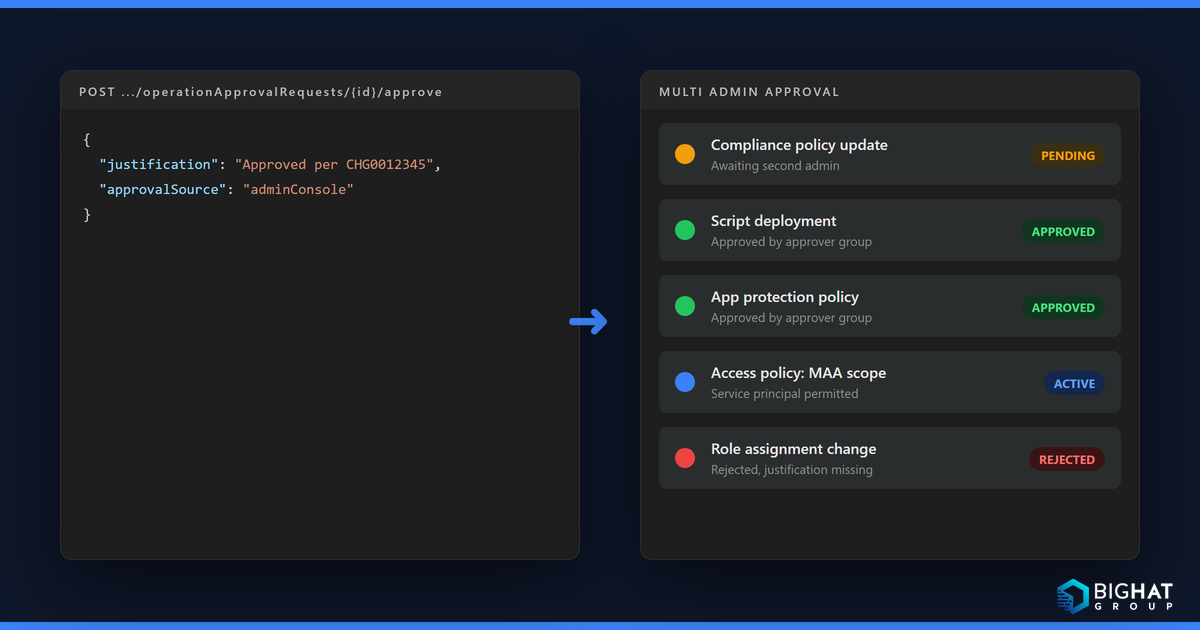
When I published the June note that Multi Admin Approval now enforces on automation through the Graph API, it became one of the most-read pages on this site, and the emails that followed all asked the same thing: not what changed, but how to script it. This guide is that walkthrough. It covers what Multi Admin Approval (MAA) protects as of October 2026, how to design access policies and approver groups without locking yourself out, the exact admin center clicks a human approver makes, and then the part most of you came for: how a script that creates a protected object receives an approval request, how it waits, how an approver can approve from Graph, and how the script finishes the job. Every endpoint, header, permission and limit here is checked against Microsoft Learn. Where I add my own opinion, I say so.
What Multi Admin Approval is and why it now covers Graph automation
Per the Microsoft Learn overview, MAA access policies “require that a second administrative account approves a change before the change is applied”. An access policy names one protected profile type and the group of accounts allowed to approve changes to it. When any account changes a protected resource, Intune holds the change until a different account explicitly approves it; approvers can also reject. The business justification, the approver notes and the decision all land in the Intune audit log.
Until June 2026, only interactive (delegated) admin actions were intercepted. If a service principal performed the same wipe or script deployment with an app-only token, it went straight through. Microsoft’s What’s new entry for the week of June 22, 2026 closed that gap: “Multi Admin Approval (MAA) now applies to API calls made by automation through the Microsoft Graph API, not just interactive admin actions.” Two guardrails come with it. Enforcement on API calls applies only to tenants that already have MAA access policies configured; it does not enable MAA anywhere. And per the Graph API how-to, “MAA only applies to operations that modify protected resources (POST, PATCH, PUT, DELETE). Read-only operations (GET) aren’t affected.”
Why Microsoft did it is obvious once you think like an attacker. A leaked client secret for an app holding DeviceManagementManagedDevices.ReadWrite.All used to be a tenant-wide wipe button. Now the same call produces an approval request that a human has to read before anything happens.
Protected resources
The overview lists seven resource types. The Graph operationApprovalPolicyType enum carries many more values (autopilot, windows365, endpointPrivilegeManagement, filter, appProtectionPolicy and so on), but the enum is a superset of what the service enforces today. Only the documented seven are protected, app protection policies are explicitly excluded, and remediations are not on the list.
| Resource (profile type) | What triggers approval | Since, per What’s new |
|---|---|---|
| Apps | App deployments: create, edit, delete, assign. Does not apply to app protection policies. | GA week of August 28, 2023; Windows versus non-Windows scoping added August 2024 (2408) |
| Scripts | Deploying PowerShell scripts to Windows devices | One of the two original policy types (app, script) in the Graph schema |
| Device actions | Wipe, retire and delete | Wipe added week of August 18, 2025 (2508); retire and delete are listed in the overview |
| Role-based access control | Any change to roles: permissions, admin groups, member group assignments | Week of August 18, 2025 (2508) |
| Tenant configuration | Device categories: create, edit, delete | Week of September 15, 2025 (2509) |
| Compliance policies | Creating and managing compliance policies | Week of March 2, 2026 (2602) |
| Configuration policies | Policies created through the settings catalog | Week of March 2, 2026 (2602) |
| Access policies (MAA itself) | Any change to an access policy, including its exclusions | Automatically protected; not selectable as a profile type |
Two notes on the table. “All actions for a protected resource are protected, including but not limited to: Edit, Create, Modify, Delete, Assign” is Microsoft’s wording, so an assignment change to an existing app counts. And the June 2026 enforcement on app-only Graph calls applies to every row at once; there is no per-type opt-in for automation.
Prerequisites, roles and licensing
Microsoft describes three roles in the MAA workflow, and the distinction matters for automation because a service principal can only ever be the third one.
Access policy manager. Creates and manages access policies. Microsoft recommends a custom Intune role with the four Multi Admin Approval permissions from the custom role reference (Create access policy, Read access policy, Update access policy, Delete access policy) rather than the privileged Intune Administrator Entra role. The fifth permission in that group, Approval for Multi Admin Approval, is what the second admin needs to approve a new or changed access policy.
Approver. Must meet all three of: membership in the approver group assigned to the access policy; the resource-specific Read permission for the type being approved (for example ManagedDevices/Read to approve a device delete); and the approver group itself must be added as a member group to at least one Intune role assignment. If the group is not assigned to a role, Microsoft says “approver group members are removed from the group periodically”, which in my experience is the most common reason approvals mysteriously stop working. The group must be a security group (distribution lists, Microsoft 365 groups and mail-enabled security groups “silently fail to resolve approver membership”), and members should be direct members because nested membership “may result in unreliable behavior”.
Change requestor. Needs the ordinary Intune RBAC permission for the action (MobileApps/Create, RemoteTasks/Wipe). The same account submits the request and later selects Complete. For automation this is your service principal, and Microsoft is explicit: “Applications can’t approve or reject MAA requests — only interactive admin accounts can approve requests.”
Nobody can approve their own request, including Global Administrators and Intune Administrators. By default every participating admin needs an Intune license; the Allow access to unlicensed admins setting lifts that requirement, and Microsoft warns that the setting is irreversible.
Graph permissions
These are the permissions documented on the beta reference pages. Everything MAA-specific lives in beta; the v1.0 reference has no operationApprovalPolicy or operationApprovalRequest resource, and Microsoft’s standard note applies: Intune beta APIs are supported but change more often than v1.0.
| Call | Documented permissions (delegated and application) |
|---|---|
List, get, create, update, delete operationApprovalPolicies | DeviceManagementRBAC.Read.All, DeviceManagementRBAC.ReadWrite.All |
List or get operationApprovalRequests | DeviceManagementConfiguration.Read.All, DeviceManagementConfiguration.ReadWrite.All, DeviceManagementRBAC.Read.All, DeviceManagementRBAC.ReadWrite.All |
approve, reject, cancelMyRequest, retrieveMyRequests, retrieveRequestStatus | DeviceManagementConfiguration.Read.All, DeviceManagementRBAC.Read.All |
Create a deviceManagementScript (the worked example) | DeviceManagementScripts.ReadWrite.All or DeviceManagementConfiguration.ReadWrite.All |
List auditEvents (v1.0) | DeviceManagementApps.Read.All, DeviceManagementApps.ReadWrite.All |
Graph permission is necessary but not sufficient. The Intune RBAC check still runs on top, so an app with DeviceManagementConfiguration.ReadWrite.All and no Intune role assignment behaves differently from a delegated admin with the same scope.
Designing access policies
How many policies
Each access policy supports a single profile type, so a tenant that wants to protect apps, scripts, device actions, RBAC, compliance and configuration policies needs at least six policies. My pattern is one policy per type sharing one endpoint approver group, plus a separate policy for the Role type that I create last. I only split app policies by platform (the August 2024 release lets you limit an app policy to Windows applications, non-Windows applications or both) when two different teams approve for each other.
Approver groups
Create a dedicated security group per approval tier, assign it directly to an Intune role (a custom role carrying the resource Read permissions is enough), and keep members direct. Name them so the audit log reads well: SG-Intune-MAA-Approvers-Endpoint, SG-Intune-MAA-Approvers-RBAC. Put at least two approvers in each, in different time zones if you run follow-the-sun, because requests expire.
Break-glass considerations
MAA has no emergency bypass switch and Intune sends no notifications, so plan for three failure modes.
- All approvers unavailable. The request expires after 3 days. The mitigation is group size and an on-call rota, not a bypass.
- The Role deadlock. A Role access policy protects every RBAC change, including the role assignment that your approver group needs. Microsoft’s documented recovery is to delete the Role policy under Tenant administration > Multi Admin Approval > Access policies, wait 3 to 5 minutes, fix the assignments under Tenant administration > Roles, then recreate the policy. Avoid it by configuring every other policy and verifying RBAC before you enable the Role type.
- Automation that cannot wait. Use the Exclusions tab to exempt a specific enterprise application from one policy. Exclusions apply to app-only tokens only (delegated calls by the same app are still intercepted), are capped at 50 applications per access policy, need a second administrator’s approval, and every add, remove or modify is captured in the audit log. Microsoft’s warning is blunt: each exclusion “creates a gap in your approval workflow that could be exploited if the excluded application is compromised”.
My rule for exclusions: only for vendor tooling I cannot change, scoped to the one policy it needs, certificate credentials instead of client secrets, and a Conditional Access policy for workload identities that blocks the service principal from outside known IP ranges. That policy needs Workload Identities Premium licensing and only covers single-tenant service principals registered in your tenant, but for an app that can wipe devices without approval it is worth the licence.
Creating a policy
In the admin center: Tenant administration > Multi Admin Approval > Access policies > Create. On Basics set a name and the single Profile type; on Approvers select Add groups; on Exclusions optionally Add enterprise applications; on Review + submit for approval enter a Business justification and select Submit for approval. A second admin with Approval for Multi Admin Approval approves; the first admin returns to the policy and selects Complete.
Through Graph it is a single POST. Because access policies are themselves protected, expect the approval flow described below on this call as well.
POST https://graph.microsoft.com/beta/deviceManagement/operationApprovalPolicies
Content-Type: application/json

{
  "@odata.type": "#microsoft.graph.operationApprovalPolicy",
  "displayName": "MAA - Windows scripts",
  "description": "Second-admin approval for PowerShell script deployments",
  "policyType": "script",
  "policyPlatform": "notApplicable",
  "policySet": {
    "@odata.type": "microsoft.graph.operationApprovalPolicySet",
    "policyType": "script",
    "policyPlatform": "notApplicable"
  },
  "approverGroupIds": [ "<approver security group object ID>" ]
}
GET https://graph.microsoft.com/beta/deviceManagement/operationApprovalPolicies lists what you have. displayName is capped at 128 characters and description at 1024.
The approval workflow for a human admin
Submit
The requestor uses the normal create or edit flow. On the final page before saving, a Business justification field appears; fill it in, because it is what the approver reads, then submit. If a request for the same object is already pending, Intune blocks the new one with a message. Status is visible under Tenant administration > Multi Admin Approval > My requests, and a pending request can be withdrawn there with Cancel request.
Approve or reject
The approver goes to Tenant administration > Multi Admin Approval > Received requests (the overview also refers to this list as All requests), or to the consolidated Tenant administration > Admin tasks pane, which shows MAA requests alongside Defender security tasks and Endpoint Privilege Management elevation requests and needs Organization > Read to open. Select the Business justification link, read the change, enter Approver notes, and choose Approve request or Reject request. The notes flow back to the requestor’s My requests view, which is how a rejection reason gets communicated. Since the week of April 27, 2026 (service release 2604), the My requests and All requests tabs also show an Agent Response column for Windows PowerShell script requests when the Change Review Agent has a suggestion; that integration is in preview.
Complete
Approval does not apply the change. The original requestor opens the request and selects Complete; Intune processes it, the status becomes Completed, and a console notification confirms success or failure. Automation reproduces this step as the resubmit with the approval code.
Lifecycle and expiry
| Admin center status | Graph status value | Meaning |
|---|---|---|
| Needs approval | needsApproval | Waiting for an approver |
| Approved | approved | Approved; waiting for the requestor to Complete |
| Completed | completed | Change applied |
| Rejected | rejected | Declined by an approver; submit a new request if still needed |
| Canceled | cancelled | Withdrawn by the requestor |
| Expired | expired | Not processed further within 3 days; must be resubmitted |
Microsoft’s exact words: “If a request isn’t processed further within 3 days, it becomes Expired, and must be resubmitted. Each change of status remains visible for up to 30 days after the status changes.” Every request also carries an expirationDateTime, which is the value your automation should watch rather than hard-coding 72 hours.
Automation: the Graph API workflow
Endpoints and API version
Everything below is on the beta endpoint. There is no v1.0 equivalent today, so pin your code to these URLs and watch the Intune What’s New series for the day they move.
| Purpose | Request |
|---|---|
| List access policies | GET /beta/deviceManagement/operationApprovalPolicies |
| Create an access policy | POST /beta/deviceManagement/operationApprovalPolicies |
| List approval requests | GET /beta/deviceManagement/operationApprovalRequests |
| Get one request | GET /beta/deviceManagement/operationApprovalRequests/{id} |
| My own requests | GET /beta/deviceManagement/operationApprovalRequests/retrieveMyRequests |
| Is an object locked by a pending request | POST /beta/deviceManagement/operationApprovalRequests/retrieveRequestStatus with entityId and entityType |
| Approve | POST /beta/deviceManagement/operationApprovalRequests/{id}/approve |
| Reject | POST /beta/deviceManagement/operationApprovalRequests/{id}/reject |
| Cancel my request | POST /beta/deviceManagement/operationApprovalRequests/cancelMyRequest with { "id": "..." } |
| Audit trail | GET /v1.0/deviceManagement/auditEvents |
App-only versus delegated
The approval protocol is identical for both token types; the headers and status codes do not change. What changes is who may do what.
- An app-only (client credentials) principal can submit protected changes, read request status, resubmit with the approval code, and be excluded from a policy. It cannot approve or reject, and the request it creates records the app in
requestor.application. - A delegated token acts as the signed-in admin. It can submit, read, and, if that admin is in the approver group and holds the resource Read permission, approve or reject someone else’s request. It can never approve its own, and exclusions do not apply to delegated calls even when the app is excluded.
The design consequence: your pipeline identity submits, a human approves (in the portal or with a delegated Graph call from a session they signed into), and your pipeline identity completes. Do not build a second service principal as an “approver”; Microsoft says it will not work, and it would defeat the purpose.
Step 1: submit with a justification header
Add x-msft-approval-justification to the modifying request. The value must be Base64-encoded; Microsoft’s example value YXBwIG9ubHkgdGVzdA== decodes to app only test. The sample below creates a Windows PowerShell script; its header decodes to CHG0012345: deploy pilot script to Ring 0.
POST https://graph.microsoft.com/beta/deviceManagement/deviceManagementScripts
Content-Type: application/json
x-msft-approval-justification: Q0hHMDAxMjM0NTogZGVwbG95IHBpbG90IHNjcmlwdCB0byBSaW5nIDA=

{
  "@odata.type": "#microsoft.graph.deviceManagementScript",
  "displayName": "BHG - Pilot script",
  "description": "Created by automation under Multi Admin Approval",
  "scriptContent": "V3JpdGUtT3V0cHV0ICJIZWxsbyBXb3JsZCI=",
  "runAsAccount": "system",
  "enforceSignatureCheck": false,
  "fileName": "Pilot.ps1",
  "runAs32Bit": false,
  "roleScopeTagIds": ["0"]
}
Without the header, the call fails with an error stating that the x-msft-approval-justification header is required; the how-to describes this as an HTTP 400.
Step 2: read the 412 and keep the approval code
This is where most scripts break. A successful submission does not return 201 Created. It returns HTTP 412 Precondition Failed with an outer Graph error code of BadRequest, and the response carries an x-msft-approval-code header. Microsoft’s guidance: “Use the presence of this header together with HTTP 412 as the signal that MAA accepted the request and created an approval request.” Save the method, URL, body and the code; you need all four later.
HTTP/1.1 412 Precondition Failed
x-msft-approval-code: aabb1234-5678-9012-abcd-ef0123456789
Content-Type: application/json

{
  "error": {
    "code": "BadRequest",
    "message": "{ \"Message\": \"Approval Required. Request Approval using the request ID returned as part of the x-msft-approval-code response header. x-msft-approval-code: aabb1234-5678-9012-abcd-ef0123456789 ...\" }"
  }
}
Step 3: wait, poll, notify
Intune does not notify anyone, so your script has to. The approval code is the request ID, so you can read the request directly, or use the filter form Microsoft shows in the how-to. Post the justification and a pointer to Tenant administration > Multi Admin Approval into whatever your approvers actually read, and use expirationDateTime to decide when to escalate.
GET https://graph.microsoft.com/beta/deviceManagement/operationApprovalRequests/aabb1234-5678-9012-abcd-ef0123456789GET https://graph.microsoft.com/beta/deviceManagement/operationApprovalRequests?$filter=requestId eq 'aabb1234-5678-9012-abcd-ef0123456789'Before submitting at all, retrieveRequestStatus tells you whether the target object is already locked by someone else’s pending request (entityLocked: true), which lets you fail fast instead of hitting the “already pending” error.
Step 4: approving through Graph
A human approver can act from Graph with a delegated token instead of the portal. justification is capped at 1024 characters; approvalSource is optional and defaults to unknown.
POST https://graph.microsoft.com/beta/deviceManagement/operationApprovalRequests/aabb1234-5678-9012-abcd-ef0123456789/approve
Content-Type: application/json

{
  "justification": "Approved per CHG0012345 after reviewing the script content in the request pane",
  "approvalSource": "adminConsole"
}
Reject has the same shape against /reject. Both return 200 OK with a string body. The permission tables for these actions list application permissions, but the how-to is categorical that applications cannot approve or reject, so treat the delegated path as the only one that works.
Step 5: resubmit with the approval code
Once status is approved, replay the identical request with the justification header replaced by x-msft-approval-code. This is the API equivalent of the requestor selecting Complete, and it returns the normal 201 Created with the new object.
POST https://graph.microsoft.com/beta/deviceManagement/deviceManagementScripts
Content-Type: application/json
x-msft-approval-code: aabb1234-5678-9012-abcd-ef0123456789

{ ...the same body as Step 1... }
Full worked example in PowerShell
This uses the Microsoft Graph PowerShell SDK’s Connect-MgGraph and Invoke-MgGraphRequest. I could not find dedicated cmdlets for the operation approval endpoints in the Microsoft.Graph.Beta.DeviceManagement.Administration reference, and Invoke-MgGraphRequest is Microsoft’s documented route for “APIs for which there isn’t an equivalent cmdlet yet”. -SkipHttpErrorCheck stops the 412 from throwing, while -ResponseHeadersVariable and -StatusCodeVariable capture the header and status code.
The first script connects app-only with a certificate, submits a Windows PowerShell script, waits for approval, and completes.
#Requires -Modules Microsoft.Graph.Authentication
<#
  Submit-IntuneScriptWithMaa.ps1
  App-only automation that creates a Windows PowerShell script in Intune under Multi Admin Approval.
  The app registration needs DeviceManagementScripts.ReadWrite.All (create the script) and
  DeviceManagementConfiguration.Read.All or DeviceManagementRBAC.Read.All (read approval requests).
#>
param(
    [Parameter(Mandatory)] [string] $TenantId,
    [Parameter(Mandatory)] [string] $ClientId,
    [Parameter(Mandatory)] [string] $CertificateThumbprint,
    [string] $Justification       = "CHG0012345: deploy pilot script to Ring 0",
    [int]    $PollIntervalSeconds = 300
)

Connect-MgGraph -ClientId $ClientId -TenantId $TenantId -CertificateThumbprint $CertificateThumbprint -NoWelcome

$uri        = "https://graph.microsoft.com/beta/deviceManagement/deviceManagementScripts"
$scriptText = 'Write-Output "Hello from Intune"'
$body = @{
    "@odata.type"         = "#microsoft.graph.deviceManagementScript"
    displayName           = "BHG - Pilot script"
    description           = "Created by automation under Multi Admin Approval"
    scriptContent         = [Convert]::ToBase64String([Text.Encoding]::UTF8.GetBytes($scriptText))
    runAsAccount          = "system"
    enforceSignatureCheck = $false
    fileName              = "Pilot.ps1"
    runAs32Bit            = $false
    roleScopeTagIds       = @("0")
} | ConvertTo-Json -Depth 5

# Step 1: submit with the Base64 justification header. Expect HTTP 412 plus x-msft-approval-code.
$encodedJustification = [Convert]::ToBase64String([Text.Encoding]::UTF8.GetBytes($Justification))
$null = Invoke-MgGraphRequest -Method POST -Uri $uri -Body $body -ContentType "application/json" `
    -Headers @{ "x-msft-approval-justification" = $encodedJustification } `
    -SkipHttpErrorCheck -ResponseHeadersVariable responseHeaders -StatusCodeVariable statusCode

if ($statusCode -eq 201) {
    Write-Output "Created immediately: scripts are not MAA-protected in this tenant, or this app is excluded."
    return
}

# Step 2: the 412 is the success signal. Pull the approval code out of the response headers.
$codeKey = $responseHeaders.Keys | Where-Object { $_ -ieq "x-msft-approval-code" } | Select-Object -First 1
if ($statusCode -ne 412 -or -not $codeKey) {
    throw "Unexpected HTTP $statusCode without an approval code. Check Graph permissions and Intune RBAC."
}
$approvalCode = @($responseHeaders[$codeKey])[0]
Write-Output "Approval request $approvalCode created. Waiting for a second administrator."

# Step 3: notify your approvers here (ticket, chat, email). Intune sends nothing on its own.
# Then poll the request by ID until it leaves needsApproval. The service expires it after 3 days.
$requestUri = "https://graph.microsoft.com/beta/deviceManagement/operationApprovalRequests/$approvalCode"
do {
    Start-Sleep -Seconds $PollIntervalSeconds
    $request = Invoke-MgGraphRequest -Method GET -Uri $requestUri
    Write-Output ("{0:u}  status={1}  expires={2}" -f (Get-Date), $request.status, $request.expirationDateTime)
} while ($request.status -eq "needsApproval")

if ($request.status -ne "approved") {
    throw "Request $approvalCode ended as '$($request.status)'. Approver notes: $($request.approvalJustification)"
}

# Step 5: replay the identical request with the approval code. This is the API form of 'Complete'.
$created = Invoke-MgGraphRequest -Method POST -Uri $uri -Body $body -ContentType "application/json" `
    -Headers @{ "x-msft-approval-code" = $approvalCode }
Write-Output "Script created with id $($created.id). Approved by $($request.approver.user.displayName)."
The approver’s half runs interactively, signed in as a member of the approver group. It lists what is waiting, shows who asked and why, and approves one request after the approver has read the change in the admin center.
# Approve-IntuneMaaRequests.ps1 - delegated session for a human approver
Connect-MgGraph -Scopes "DeviceManagementRBAC.Read.All" -NoWelcome

$all     = Invoke-MgGraphRequest -Method GET -Uri "https://graph.microsoft.com/beta/deviceManagement/operationApprovalRequests"
$pending = @($all.value | Where-Object { $_.status -eq "needsApproval" })

foreach ($r in $pending) {
    $who = if ($r.requestor.application.displayName) { $r.requestor.application.displayName } else { $r.requestor.user.displayName }
    Write-Output "$($r.id)  from $who  types=$($r.requiredOperationApprovalPolicyTypes -join ',')  expires $($r.expirationDateTime)"
    Write-Output "  justification: $($r.requestJustification)"
}

$id       = Read-Host "Request ID to approve"
$decision = @{
    justification  = "Approved per CHG0012345 after reviewing the script content in the admin center"
    approvalSource = "adminConsole"
} | ConvertTo-Json

Invoke-MgGraphRequest -Method POST -Body $decision -ContentType "application/json" `
    -Uri "https://graph.microsoft.com/beta/deviceManagement/operationApprovalRequests/$id/approve"
Once the script object exists, assign it and force an Intune policy sync on a test device to watch it land. The assignment is a modification to a protected resource too, so expect another 412 round trip when you add the group.
If you move a nightly Azure Automation runbook that publishes Win32 app updates onto this pattern, expect two lessons in the first week. The runbook needs a separate resume job keyed on the approval code so it is not holding a sandbox open for hours, and approvers will want the justification to start with the change ticket number rather than describe the change, because the ticket is what they actually open.
Operational guidance
SLAs, expiry and notifications
Set an internal approval SLA well inside the 3-day expiry. Mine is four business hours for apps and scripts and one hour for device actions and RBAC changes, with an on-call approver named in the ticketing system. Because Intune sends no notifications, the notifier lives in the submitting script, backed by a scheduled job that calls retrieveMyRequests or the list endpoint and raises anything still in needsApproval with less than 24 hours to expirationDateTime. Remember the 30-day visibility window as well: after that a request drops out of the console, so export anything you will need as evidence.
Audit and reporting
The Graph how-to confirms that MAA events “including approve, block, pass, exclusion add, and exclusion remove” are recorded in the existing Intune audit log. In the admin center that is Tenant administration > Audit logs, filtered with Add filters > Category and Activity; Export writes a CSV, and the same pane routes logs to Azure Monitor for retention beyond what the console shows. Viewing needs the Intune Administrator role or an Intune role with Audit data > Read, per the audit log documentation. Programmatically, GET https://graph.microsoft.com/v1.0/deviceManagement/auditEvents returns two years of events; each event’s actor block carries applicationId, servicePrincipalName and userPrincipalName, which is how you separate automation-driven approvals from human ones in a report.
Common errors
| Symptom | Likely cause | Fix |
|---|---|---|
HTTP 400 with a message that x-msft-approval-justification is required | Protected resource, header missing | Add the Base64 header and resend |
HTTP 412 Precondition Failed, code BadRequest, x-msft-approval-code header present | Expected: the approval request was created | Store the code, poll, notify, resubmit |
| HTTP 403 Forbidden | Missing Graph permission or Intune RBAC for the requestor; Microsoft’s June 2026 announcement also described MAA blocks as 403 | Check the app’s permissions and role assignment, then check exclusions |
“A request for this object is already pending” or entityLocked: true | Another request for the same object is open | Wait for it, or have its requestor cancel |
Status expired | Nobody acted within 3 days | Resubmit with the justification header; you get a new code |
| Approver cannot see or approve requests | Group not assigned to an Intune role, not a security group, nested membership, or missing resource Read permission | Fix the group against the prerequisites list |
| Approving your own request fails | Not allowed by design | A different administrator approves |
| RBAC changes blocked after enabling a Role policy | The Role deadlock | Delete the Role policy, wait 3 to 5 minutes, fix RBAC, recreate |
| Resubmit with the approval code fails | Request differs from the original, or the window passed | Microsoft says to resubmit the same request; replay it unchanged and promptly |
What to do about it
- Open Tenant administration > Multi Admin Approval > Access policies and list the active policies. If there are none, API enforcement does not touch you yet, and this is the moment to design it deliberately rather than inherit it.
- Inventory every service principal with Intune write permissions under Entra ID > Enterprise apps, and map each to the protected types it touches (apps, scripts, device actions, RBAC, compliance, configuration, device categories).
- Fix the approver groups first: security groups only, direct members, at least two per group, each group assigned directly to an Intune role that carries the resource Read permissions.
- Create one access policy per profile type. Leave the Role type until the others are verified, to avoid the deadlock.
- Update every script and runbook that modifies a protected type: send
x-msft-approval-justification(Base64), treat HTTP 412 withx-msft-approval-codeas success, persist the method, URL, body and code, polloperationApprovalRequests/{id}, notify approvers, and replay withx-msft-approval-code. - Decide exclusions deliberately: only for vendor tooling you cannot change, one policy each, certificate credentials, a Conditional Access workload identity policy, and a quarterly review of the list.
- Write the approval SLA down, put an approver on call, and give approvers the delegated PowerShell above or the Admin tasks pane.
- Route the Intune audit log to Azure Monitor and build one report that splits MAA approve, block and pass events by
actor.applicationIdversusactor.userPrincipalName. - Pilot the whole flow once: create a script through the 412 round trip, assign it, force a sync on a test device, and confirm the audit entries read the way your auditors expect.
- Pin your code to the beta URLs and follow the Intune What’s New series for the move to v1.0 and for new protected types; the enum already hints at where Microsoft is going.
Need a second pair of hands? Big Hat Group provides Microsoft Intune consulting for organizations in the United States and Canada, from a two-week health check to a full migration. Book a discovery call to talk through your environment.
Sources
- Use Multi Admin Approval in Intune - Microsoft Intune
- Use Multi Admin Approval with the Microsoft Graph API - Microsoft Intune
- What’s new in Microsoft Intune (weeks of April 27 and June 22, 2026)
- What’s new in Microsoft Intune archive (August 2023, August 2024, August and September 2025, March 2026 entries)
- Create a custom role in Intune - Microsoft Intune
- Centrally manage Admin Tasks - Microsoft Intune
- Audit changes and events in Microsoft Intune - Microsoft Intune
- operationApprovalPolicy resource type - Microsoft Graph beta
- Create operationApprovalPolicy - Microsoft Graph beta
- List operationApprovalPolicies - Microsoft Graph beta
- operationApprovalRequest resource type - Microsoft Graph beta
- List operationApprovalRequests - Microsoft Graph beta
- Get operationApprovalRequest - Microsoft Graph beta
- approve action - Microsoft Graph beta
- reject action - Microsoft Graph beta
- cancelMyRequest action - Microsoft Graph beta
- retrieveMyRequests function - Microsoft Graph beta
- retrieveRequestStatus action - Microsoft Graph beta
- operationApprovalRequestEntityStatus resource type - Microsoft Graph beta
- Create deviceManagementScript - Microsoft Graph beta
- List auditEvents - Microsoft Graph v1.0
- Connect-MgGraph (Microsoft.Graph.Authentication)
- Invoke-MgGraphRequest (Microsoft.Graph.Authentication)
- Microsoft Entra Conditional Access for workload identities