
In May I wrote that Microsoft had made passwordless the default in Entra ID , and that post still pulls in US IT managers every week. The questions that come back are never about the announcement. They are about sequencing: which method for which people, what to turn on first, how to enforce without locking out the help desk, what to do with the hybrid file servers, and how to explain to a CFO why the SMS codes everyone is used to will stop working. This guide is the phased migration I run with mid-market organizations in the United States and Canada. Every date, setting path, limit and licence statement here is checked against Microsoft Learn as of late October 2026. Where I give my own opinion, I say so.
Why passwordless now
Three Microsoft deadlines have converged, and two of them have already passed.
Passkeys are the default, and SMS and voice are being retired. Microsoft’s passkeys by default and SMS/voice retirement page states that starting September 1, 2026, passkeys became the default authentication experience and were automatically enabled for users enabled for SMS or voice. From February 1, 2027, Microsoft-provided telephony delivery for SMS and voice is retired for all users except Global Administrators and external users, whose date is July 1, 2027. After the applicable date, users whose only available MFA method is SMS or voice are required to register a passkey during sign-in, the prompt is blocking, and Microsoft says there is no opt out from that enforcement. Organizations with a genuine regulatory or operational need for a telephony channel can contract a provider through the Microsoft Security Store; the configuration experience opens October 30, 2026, and Soprano and Telesign are the initial private-preview providers. The dates apply to the public cloud only. The Microsoft Security blog that announced the change also noted that moving users to passkeys comes at no additional cost, and cited Microsoft Threat Intelligence data that AI-enabled phishing campaigns reach click-through rates as high as 54 percent against roughly 12 percent for traditional ones.
System-preferred authentication reaches the first factor. The system-preferred authentication page explains that the setting is Microsoft managed for all users by default, and in that state it applies to both first-factor and second-factor authentication. The current ranking is Temporary Access Pass, then passkey, then external MFA, then certificate-based authentication (promoted from last place on March 18, 2026), then Microsoft Authenticator notifications, TOTP, telephony, QR code, and finally password. If a user has a passkey available on the device and browser they’re signing in from, they’re prompted for it instead of the password; a passkey that lives only on another device doesn’t hide the password page everywhere. Switching the state to Enabled limits the logic to the second factor; Disabled turns it off.
Mandatory MFA for Azure and the legacy policy migration are behind us. Microsoft’s mandatory MFA page describes Phase 1 (Azure portal, Entra admin center and Intune admin center from October 2024, Microsoft 365 admin center from February 2025) and Phase 2 (Azure CLI, Azure PowerShell, the Azure mobile app, IaC tools and the control-plane REST API from October 1, 2025), with the Phase 2 postponement option ending July 1, 2026. Break-glass accounts are explicitly in scope, and Microsoft recommends a passkey (FIDO2) or certificate-based authentication for them. On the policy side, the Authentication methods policy page states that beginning September 30, 2025, authentication methods can’t be managed in the legacy MFA and SSPR policies. If your tenant still shows Pre-migration or Migration in Progress under Manage migration, finishing that is Phase 0 work.
The reason to care beyond compliance is the one Microsoft puts at the top of its passkeys page : remote phishing steals or relays passwords, SMS codes and one-time passcodes without physical access to the device, and attackers downgrade users to those methods on purpose. A passkey is origin-bound, requires local user presence, and only releases its secret to the relying party it was registered with. That is the property every other control in this guide is trying to reach.
What “passwordless by default” means, and what it does not
There is no tenant toggle named “passwordless preferred”. What Microsoft documents is three mechanisms working together: system-preferred authentication choosing the strongest credential at first factor, passkeys auto-enabled for SMS and voice users with the registration campaign set to Microsoft managed targeting passkeys, and Conditional Access templates that push admins to phishing-resistant strengths. For a brand-new tenant, Microsoft Learn’s migration guide still says a new tenant has all methods Off in the Authentication methods policy by default; I could not find a Learn page stating that new tenants are created with passkeys pre-enabled, so verify in your own tenant before you assume.
Two more facts frame the whole project. The certificate-based authentication overview says password as an authentication method can’t be turned off, and the Temporary Access Pass guide says a TAP doesn’t replace a user’s password. “Passwordless” in Entra today means passwords exist but are never typed. Design for that.
Method comparison
Microsoft’s authentication overview lists six phishing-resistant methods: Windows Hello for Business, Platform Credential for macOS, synced passkeys, FIDO2 security keys, passkeys in Microsoft Authenticator, and certificate-based authentication. The table adds the two passwordless methods that are not phishing-resistant, because you will meet both during the migration.
| Method | Phishing-resistant | Platforms | Prerequisites | Licence | Best for |
|---|---|---|---|---|---|
| FIDO2 security key | Yes (device-bound, attestable) | Windows, macOS, iOS, Android, all major browsers | Passkey (FIDO2) policy enabled, a device-bound passkey profile, optional attestation and AAGUID allow list | Included in every Entra edition, including Free | Privileged roles, break-glass accounts, regulated workloads |
| Passkey in Microsoft Authenticator | Yes (device-bound, attestable) | iOS 17 or later, Android 14 or later | Passkey profile allowing the Authenticator AAGUIDs; Bluetooth plus cable.ua5v.com / cable.auth.com reachability for cross-device use | Included | Information workers with a managed or personal phone |
| Synced passkey (iCloud Keychain, Google Password Manager) | Yes, but unattested | macOS 13+, iOS 16+, Android 9+, Chrome on Windows | Passkey profile with Synced type; attestation must be off | Included | General workforce where cost and speed matter |
| Windows Hello for Business | Yes | Windows 10/11 Pro, Enterprise, Education | MFA at provisioning, TPM recommended, cloud Kerberos trust for hybrid SSO | Windows Pro, E3, E5 or Education licence; no Entra licence | Everyone on a managed Windows PC |
| Platform Credential for macOS | Yes | macOS with Platform SSO via Intune or another MDM | Secure Enclave key provisioned by the Microsoft Enterprise SSO extension | Included with Intune plans | Mac users; see my Platform SSO guide |
| Certificate-based authentication | Yes when bound as multifactor | Browsers on all platforms, Office apps on iOS, Android and Windows | Your own PKI, CA uploaded to Entra, HTTP CRL distribution point | Free feature of Entra ID | Smart card organizations, public sector |
| Authenticator phone sign-in | No (passwordless only) | iOS, Android | Microsoft Authenticator policy mode Any or Passwordless, device registered to the tenant | Included | A bridge for users not yet on passkeys |
| Temporary Access Pass | Recovery credential, not a destination | Any | Temporary Access Pass policy enabled; Authentication Administrator to issue | Included | Day-one onboarding and lost-device recovery |
Two notes from Microsoft’s own guidance. The passkeys page recommends FIDO2 security keys or Authenticator passkeys for highly regulated industries and elevated privileges, and synced passkeys as the convenient, low-cost default for everyone else. And the passkey enablement guide says to treat synced passkeys as phishing-resistant credentials with the same security posture as other unattested authenticators. My own rule: attested, device-bound passkeys for anyone who can reset someone else’s credential; synced passkeys for everyone else; Windows Hello for Business on every corporate PC regardless.
Phase 0: inventory and reporting (weeks 1 to 2)
You cannot plan a migration you cannot measure. Four reports and one script give you the baseline.
Authentication methods activity. Browse to Entra ID > Authentication methods > Activity. The activity report page says it needs a Microsoft Entra ID P1 or P2 licence and a role such as Reports Reader, Security Reader or Global Reader. The Registration tab shows users capable of MFA, passwordless and SSPR plus a per-method registration count; the Usage tab shows sign-ins by authentication requirement and by method, which is the number you will track for 90 days. User registration details lists each user’s registered methods, including FIDO2 security key, Windows Hello for Business and Microsoft Passwordless phone sign-in. Data lags by up to 36 hours.
SMS and voice exposure. The retirement page points to Microsoft’s entra-sms-voice-usage-analyzer PowerShell script, runnable with Global Reader, Authentication Policy Administrator or Security Reader. Any non-zero result means your tenant is in scope for the February 2027 retirement. Put those users in a dedicated security group now; you will target it with the registration campaign and your communications.
Legacy authentication. Follow the block legacy authentication guide : in Entra ID > Monitoring & health > Sign-in logs, add the Client App column, filter on the legacy protocols, and repeat on the User sign-ins (non-interactive) tab. The Sign-ins using legacy authentication workbook does the triage for you. Microsoft’s figure is that more than 97 percent of credential stuffing and 99 percent of password spray attacks use legacy authentication.
Apps that cannot do modern authentication. The mandatory MFA page is blunt that the OAuth 2.0 ROPC grant is incompatible with MFA, and that user accounts used as service accounts must move to managed identities or service principals. In Entra ID > Monitoring & health > Usage & insights, the AD FS application activity report lists relying parties still authenticating through AD FS in the last 30 days. Any user identity your automation signs in with is a migration blocker, and the same thinking now applies to AI agents; see my Entra Agent ID deep dive for how agent identities replace shared user accounts.
Policy state. Dump the current Authentication methods policy so you have a rollback record:
GET https://graph.microsoft.com/v1.0/policies/authenticationMethodsPolicyThen open Entra ID > Authentication methods > Policies > Manage migration and record the state. The three states are Pre-migration (the new policy is used for authentication only, legacy settings respected), Migration in Progress (used for authentication and SSPR, legacy respected) and Migration Complete (legacy ignored). Security questions still live only in the legacy SSPR policy, and the Number of methods required to reset control stays there too, so completing migration does not break SSPR.
Phase 1: enable methods and registration (weeks 2 to 5)
Everything in this phase is done by an Authentication Policy Administrator under Entra ID > Authentication methods > Policies. One structural warning from the policy management page : the policy has a 20 KB size limit and registration can fail when many groups are targeted, so use one group per method and consolidate.
Passkeys (FIDO2) and passkey profiles
Open Passkey (FIDO2) and opt in to passkey profiles from the banner; the enablement guide notes you can’t opt out afterwards, and your existing global settings become the Default passkey profile. On the Configure tab set Allow self-service set up to Yes, otherwise nobody can register from Security info. Then build two profiles:
- Admins and high-privilege users: Passkey types = Device-bound, Enforce attestation = Yes, and Target specific AAGUIDs set to Allow with your approved security key models plus the Authenticator AAGUIDs (
de1e552d-db1d-4423-a619-566b625cdc84for Android and90a3ccdf-635c-4729-a248-9b709135078ffor iOS, from the Authenticator passkey guide ). If Macs use Platform SSO, add the macOS Platform Credential AAGUID7FD635B3-2EF9-4542-8D9D-164F2C771EFC. - Everyone else: Passkey types = Device-bound and Synced, attestation off. Attestation enforcement excludes synced passkeys by design.
Assign each profile on the Enable and Target tab. Users must complete MFA within the past five minutes before registering a passkey, guest users cannot register passkeys at all, and a UPN change forces the user to delete and re-register their passkey. Authenticator attestation relies on Apple App Attest and Google Play Integrity, so registration can fail while those services are degraded.
Microsoft Authenticator
Enable Microsoft Authenticator for all users with Authentication mode set to Any, which allows both push and passwordless phone sign-in, and turn on Allow use of Microsoft Authenticator OTP if your legacy MFA policy allowed verification codes. Phone sign-in is not phishing-resistant, but it is a far better bridge than SMS for users whose phones cannot yet hold a passkey.
Temporary Access Pass
Enable Temporary Access Pass and scope it to the groups you are onboarding. The defaults from the TAP guide are a minimum lifetime of 1 hour, maximum of 8 hours, default of 1 hour, one-time use off, and an 8-character code; each can be tuned within 10 minutes to 30 days and 8 to 48 characters. Authentication Administrators create a TAP from Entra ID > Users > (user) > Authentication methods > Add authentication method, or with PowerShell:
$properties = @{ isUsableOnce = $true; startDateTime = '2026-12-01 08:00:00' } | ConvertTo-Json
New-MgUserAuthenticationTemporaryAccessPassMethod -UserId user@contoso.com -BodyParameter $properties
Three TAP rules bite in practice. A one-time TAP gives the user 10 minutes to finish registering the passwordless method; Microsoft documents a multi-use TAP as the way to avoid a second code when Windows Hello for Business enrollment runs long. Each user can hold only one TAP, and a new one overrides it. A TAP cannot be issued to an external guest and cannot be used with the NPS extension or the AD FS adapter. For federated domains, a TAP is preferred over federation, which makes it the cleanest way to bootstrap users still homed on AD FS.
Registration campaign
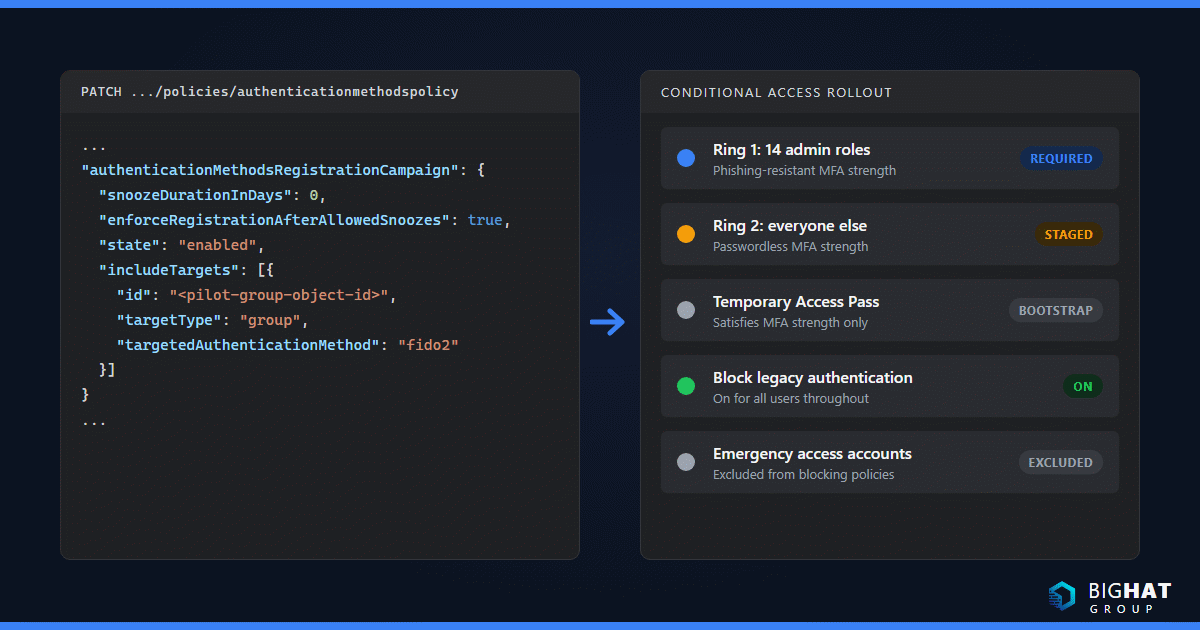
Under Entra ID > Authentication methods > Registration campaign, the campaign guide gives you two states. Microsoft managed targets passkeys when included users are in an eligible passkey profile (unrestricted, synced-only, device-bound-only, device-bound with attestation enforced, or AAGUID-restricted with at least one iCloud Keychain, Google Password Manager, Microsoft Authenticator or Microsoft Entra passkey on Windows AAGUID), with a one-day snooze and unlimited snoozes. Enabled lets you pick the method, set Days allowed to snooze from 0 to 14, and turn on Limited number of snoozes, after which the third snooze is the last. The campaign targets one method at a time, appears only after an interactive MFA sign-in, is suppressed by Conditional Access policies that block Register security information, and does not nudge Linux users. If you want firm pressure for a pilot ring, this Graph body does it:
PATCH https://graph.microsoft.com/v1.0/policies/authenticationmethodspolicy
Content-Type: application/json

{
  "registrationEnforcement": {
    "authenticationMethodsRegistrationCampaign": {
      "snoozeDurationInDays": 0,
      "enforceRegistrationAfterAllowedSnoozes": true,
      "state": "enabled",
      "excludeTargets": [],
      "includeTargets": [
        { "id": "<pilot-group-object-id>", "targetType": "group", "targetedAuthenticationMethod": "fido2" }
      ]
    }
  }
}
Protect the registration page
Deploy the Securing security info registration template. Per Microsoft’s reference policy , it targets All users (excluding guests and break-glass accounts), the user action Register security information, any location except All trusted locations, and grants access with Require authentication strength. Pick the built-in Multifactor authentication strength there: it is the only built-in strength a TAP satisfies, which is exactly why you enabled TAP first. Note the date on that page: starting July 6, 2026, policies targeting Register security information also apply during Windows Hello for Business and macOS Platform SSO registration, so test this policy in report-only mode against a Windows enrollment before you turn it on.
FIDO2 keys for privileged roles
Buy two attested keys per administrator, register both, and record the AAGUIDs in the admin profile’s allow list. Microsoft’s attestation page lists every eligible model with its AAGUID and whether it offers biometrics, USB, NFC or BLE. If you need to provision keys centrally, the Graph-based provisioning APIs are in preview and need the Authentication Administrator role.
Phase 2: enforce with Conditional Access authentication strengths (weeks 5 to 9)
Conditional Access needs Microsoft Entra ID P1. The authentication strengths page defines three built-in strengths. MFA strength is the same set as the Require multifactor authentication control. Passwordless MFA strength adds the constraint of no password and includes FIDO2 security keys, Windows Hello for Business or platform credential, multifactor certificate-based authentication, and Authenticator phone sign-in. Phishing-resistant MFA strength drops Authenticator phone sign-in. Only the MFA strength accepts a Temporary Access Pass; neither the Passwordless nor the Phishing-resistant strength does. Two limitations shape the rollout: strengths are evaluated after the initial authentication, so a user can still type a password before being asked for a passkey; and you cannot combine Require multifactor authentication with Require authentication strength in the same policy.
Ring 1: administrators
Create the policy from Entra ID > Conditional Access > Create new policy from templates, category Protect administrator or Emerging threats, template Require phishing-resistant multifactor authentication for administrators. Microsoft’s template reference recommends at least these directory roles: Global Administrator, Application Administrator, Authentication Administrator, Billing Administrator, Cloud Application Administrator, Conditional Access Administrator, Exchange Administrator, Helpdesk Administrator, Password Administrator, Privileged Authentication Administrator, Privileged Role Administrator, Security Administrator, SharePoint Administrator and User Administrator. Templates exclude only the user who created them and are created in report-only mode, so add your emergency access group to the exclusion yourself. The page carries a caution worth repeating: register the methods before you enable the policy, or you risk locking yourself out of the tenant.
| Setting | Value |
|---|---|
| Users > Include | Directory roles: the 14 roles above |
| Users > Exclude | Emergency access accounts group, Entra Connect sync account |
| Target resources > Include | All resources (formerly ‘All cloud apps’) |
| Grant | Grant access, Require authentication strength = Phishing-resistant MFA strength |
| Enable policy | Report-only for at least two weeks, then On |
Ring 2: everyone else
Start from the Require multifactor authentication for all users template, which already uses the MFA strength, and clone it per pilot group with Require authentication strength set to Passwordless MFA strength. That keeps Authenticator phone sign-in usable while passkeys spread. When a group’s registration numbers hit your target, move its policy to Phishing-resistant MFA strength. Keep Block legacy authentication (conditions Client apps = Exchange ActiveSync clients and Other clients, grant Block access) on for all users throughout.
Two gotchas from the field, both documented. The Authenticator passkey guide describes a loop where a policy requiring a passkey for All resources also blocks the Authenticator app the user needs to create that passkey; Microsoft’s fix is a pair of policies, one for desktop operating systems requiring the passkey and one for iOS and Android allowing TAP or passkey. And the strengths page warns that a user who signed in with a password is not prompted for Windows Hello for Business even if the strength requires it; they must restart the session and choose Sign-in options.
Custom strengths
You can create up to 15 custom strengths under Entra ID > Authentication methods > Authentication strengths. The advanced options page lets you restrict passkeys by AAGUID and certificate-based authentication by issuer or policy OID, with a maximum of five issuers and five OIDs per strength. A strength referenced by a policy cannot be deleted. I use a custom strength only for the break-glass test policy and for regulated subsets that must use a specific key model; the built-in strengths cover everyone else. External authentication methods are currently incompatible with authentication strengths, so tenants with a third-party MFA provider must keep Require multifactor authentication for those users.
Phase 3: reduce password dependence (weeks 8 to 13)
Enforcement makes the password irrelevant at the Entra sign-in. Phase 3 removes it from the places users still type it: the Windows lock screen, UAC prompts, and the expiry reminders.
Windows Hello for Business and the Windows passwordless experience
Windows Hello for Business is key-based, two-factor by construction, and licensed through Windows Pro, Enterprise E3/E5 and Education rather than Entra, per the overview
. It does not work with Microsoft Entra Domain Services. For Microsoft Entra joined Windows 11 devices, add the Windows passwordless experience
: a settings catalog policy under Authentication > Enable Passwordless Experience = Enabled, or the CSP ./Device/Vendor/MSFT/Policy/Config/Authentication/EnablePasswordlessExperience = 1. It needs Windows 11 22H2 with KB5030310 or later, Entra join, and an enrolled Windows Hello for Business credential or FIDO2 key. Once on, the password credential provider disappears from the lock screen for the last signed-in user, UAC and in-session prompts stop offering a password, and Accounts > Change password vanishes from Settings. Hybrid joined and domain joined devices are out of scope. Microsoft’s recommendations: configure PIN reset first, don’t set Interactive logon: Don’t display last signed-in, and don’t use the Exclude credential providers policy, which also kills passwords for local accounts and for Run as. Keep a LAPS-managed local administrator for the help desk.
Password expiration and SSPR
The password policy page
says the default maximum password age is now no expiration, but tenants created before 2021 still carry a 90-day value; check it with Get-MgDomain and change it with Update-MgDomain. For individual cloud accounts:
Update-MgUser -UserId <user ID> -PasswordPolicies DisablePasswordExpirationThis matters more than it looks. The on-premises FIDO2 SSO page documents that if a hybrid user’s password has expired, signing in with FIDO is blocked, and the same applies to Windows Hello for Business cloud Kerberos trust. A password nobody uses must still never expire, and synced users follow the on-premises policy unless you change it there.
SSPR stays in place for anyone who still has a password to forget, and administrators keep their two-gate reset policy. Two retirement details affect it: Microsoft states the SMS and voice retirement applies across Entra including SSPR, and it says it is planning support for password change by users who authenticate passwordless, with details to come. The passwordless-capable count in the activity report is your proxy for how many users never need SSPR again.
What password removal means today
Microsoft has not shipped a password-less account object for workforce users. What you get is layered suppression: system-preferred sign-in prompts for a passkey or certificate available on the current device instead of the password page, the Windows passwordless experience hides the credential provider, Conditional Access refuses a password-plus-push combination for anything protected by a passwordless or phishing-resistant strength, and the password itself is random, never expiring and unknown to the user. My recommendation is to rotate every migrated user’s password to a long random value once their passkey sign-ins are stable, and to watch Sign-ins by authentication method on the Usage tab until password drops to the noise floor.
Break-glass and recovery design
Microsoft’s emergency access guidance
is specific. Create two or more cloud-only accounts on the .onmicrosoft.com domain, not federated or synchronized, with the Global Administrator role assigned as permanent active in Privileged Identity Management, not eligible. Use a passkey (FIDO2) as the recommended method, or certificate-based authentication if you already run PKI, and make the method different from what your normal administrators use. The credential must not expire or be subject to automated cleanup. Exclude the accounts from every Conditional Access policy that blocks or restricts sign-in; report-only policies need no exclusion. Store the keys in separate, fireproof safes, use them only from a privileged access workstation, alert on every sign-in, run a post-mortem after any use, and validate the accounts at least every 90 days and after any IT staff change. Mandatory MFA for Azure applies to these accounts too, which is why a passkey rather than a password is now the only sane choice.
Send sign-in logs to a Log Analytics workspace and create an alert rule with severity 0 on this query:
SigninLogs
| where UserId == "<break-glass-1-object-id>" or UserId == "<break-glass-2-object-id>"
| project TimeGenerated, UserPrincipalName, UserId, IPAddress, ResultType, ResultDescription
For ordinary users, recovery is the Temporary Access Pass. The help desk verifies identity, issues a one-time TAP, the user registers a replacement passkey within 10 minutes and deletes the lost one in Security info. Microsoft’s authentication overview also describes Verified ID account recovery, which uses government-ID verification with biometric matching from providers in the Microsoft Security Store for users who lost every method; it is an identity verification capability, not a sign-in method, and it is worth evaluating for remote-first organizations where a help-desk call is the weakest link.
Hybrid and on-premises app realities
Most mid-market tenants in North America are still hybrid, and this is where projects stall.
Kerberos SSO for passwordless users. The cloud Kerberos trust guide
and the FIDO2 on-premises SSO page
share one prerequisite: a Microsoft Entra Kerberos server object in each domain, created with Set-AzureADKerberosServer from the AzureADHybridAuthenticationManagement module using a Hybrid Identity Administrator and a Domain Admin who is also an Enterprise Admin. Domain controllers must run Windows Server 2016 or later with the listed patches, devices need Windows 10 2004 or later, and Entra Connect must sync onPremisesSamAccountName, onPremisesDomainName and onPremisesSecurityIdentifier. Rotate the Kerberos server key on the same schedule as your other krbtgt keys. The object appears as a read-only domain controller, so members of privileged built-in groups cannot use cloud Kerberos trust or FIDO2 for on-premises SSO, and Microsoft tells you not to relax the password replication policy to fix that. Give domain admins a separate, passwordless cloud identity and a tier-0 workstation instead.
Windows Hello for Business cloud Kerberos trust needs two policies, Use Windows Hello for Business and Use cloud trust for on-premises authentication, with Use a hardware security device recommended; make sure Use certificate for on-premises authentication is not configured, because certificate trust wins. On a hybrid joined device the first sign-in with the new credential needs line of sight to a domain controller, and there is no direct migration from certificate trust: delete the Hello container with certutil.exe -deletehellocontainer and re-provision. Unsupported for both Hello and security keys: RDP or VDI with supplied credentials, Run as, signing in to a server, and S/MIME with a key.
Federation. For federated users, system-preferred authentication does not apply at the first factor; they still go to their identity provider. A TAP is preferred over federation, and the FederatedIdpMfaBehavior setting decides whether Windows Hello provisioning sends them to the IdP for MFA or shows a TAP prompt. Microsoft’s mandatory MFA guidance is to move third-party MFA to external authentication methods and to make federated IdPs send the MFA claim. The NPS extension sees no change from system-preferred and cannot accept a TAP, so VPN and RADIUS flows keep needing an Authenticator push.
Applications. Anything that only speaks ROPC, basic authentication or NTLM to a non-Kerberos target needs an owner and a date. Legacy protocol sign-ins come from the Phase 0 filter, AD FS relying parties from the Usage & insights report, and user-identity automation from the mandatory MFA review. Exclude the Entra Connect sync account from Conditional Access and never try to make it passwordless; it is a service account and the sync service is not in scope for mandatory MFA.
Metrics and a 90-day timeline
Track six numbers weekly from the Authentication methods activity report and the sign-in logs:
- Users capable of passwordless authentication, as a percentage of licensed users.
- Sign-ins by authentication method, with password and SMS trending down and passkey and Windows Hello trending up.
- Users still enabled for SMS or voice, from the analyzer script, trending to zero before February 1, 2027.
- Administrators in the 14 roles who have a device-bound passkey registered, trending to 100 percent before Ring 1 goes to On.
- Legacy authentication sign-ins, interactive and non-interactive, trending to zero.
- Date of the last successful break-glass drill, never more than 90 days old.
| Weeks | Phase | Work | Exit criteria |
|---|---|---|---|
| 1 to 2 | 0: inventory | Activity report baseline, SMS/voice analyzer, legacy auth filter, ROPC and service account list, policy export, finish legacy MFA/SSPR migration | Baseline numbers recorded; Migration Complete set |
| 2 to 3 | 1: enable | Passkey profiles (admin and general), Authenticator mode Any, TAP policy, two keys per admin registered | Every admin in the 14 roles has a device-bound passkey |
| 3 to 5 | 1: register | Registration campaign on pilot groups, security info registration policy in report-only, break-glass accounts rebuilt with passkeys and alerting | Pilot group over 80 percent passwordless-capable; break-glass drill passed |
| 5 to 7 | 2: enforce admins | Admin phishing-resistant policy report-only, review sign-in logs, switch to On | Zero admin sign-ins failing the strength in report-only for two weeks |
| 7 to 9 | 2: enforce users | Passwordless MFA strength per ring, block legacy authentication On, Authenticator passkey loop policies | Each ring under agreed help-desk ticket threshold before next ring |
| 8 to 11 | 3: Windows | Windows Hello for Business policy, cloud Kerberos trust object and policies, Windows passwordless experience on Entra joined devices | Password credential provider hidden on pilot fleet; on-premises SSO verified |
| 11 to 13 | 3: passwords | Passwords set to never expire, random rotation for migrated users, SSPR review, telephony provider decision for documented exceptions | Password sign-ins under 5 percent of interactive sign-ins; exception list signed |
The weeks assume a tenant of a few thousand users with one identity engineer and a help desk that has been briefed. Regulated tenants with a change-advisory board or a smart card population should plan for closer to five months, because custom strengths with issuer restrictions and staged approvals add cycles to every ring; a cloud-only tenant with no hybrid footprint can usually compress the plan to about nine weeks. Follow the running changes in my Entra ID What’s New series , because the passkey and telephony pieces are still moving monthly.
What to do about it
- Run the SMS and voice usage analyzer this week and put every result into a security group; that group drives your campaign and your communications.
- Open Entra ID > Authentication methods > Policies > Manage migration and move to Migration Complete if you are not already there, after confirming security questions are the only thing you still need from the legacy SSPR policy.
- Pull the Authentication methods activity report and record passwordless-capable users, sign-ins by method and legacy authentication counts as your baseline.
- Opt in to passkey profiles, set Allow self-service set up to Yes, and create an attested device-bound profile for administrators and a device-bound plus synced profile for everyone else.
- Enable Temporary Access Pass with a multi-use default and train the help desk to issue one for onboarding and lost-device recovery.
- Rebuild two break-glass accounts as cloud-only, permanent Global Administrators with FIDO2 security keys, exclude them from blocking Conditional Access policies, alert on every sign-in, and schedule a 90-day drill.
- Register two security keys for every administrator in the 14 recommended roles before you touch Conditional Access.
- Deploy the Securing security info registration and Block legacy authentication templates in report-only, then On.
- Deploy Require phishing-resistant multifactor authentication for administrators in report-only, review for two weeks, switch to On.
- Turn on the registration campaign targeting passkeys for your first user ring, then add a Conditional Access policy with Passwordless MFA strength for that ring; repeat per ring, and graduate rings to Phishing-resistant MFA strength.
- If hybrid, create the Microsoft Entra Kerberos server object, deploy Windows Hello for Business cloud Kerberos trust, and give domain admins separate cloud-only passwordless identities.
- Enable the Windows passwordless experience on Entra joined Windows 11 devices after PIN reset is configured.
- Set passwords to never expire for migrated users and rotate them to long random values; confirm the tenant-level expiry with
Get-MgDomain. - Decide, in writing, which user segments have a regulatory need for SMS or voice, and configure a telephony provider from the Microsoft Security Store for them before February 1, 2027; everyone else goes to passkeys.
Need a second pair of hands? Big Hat Group provides Azure consulting for organizations in the United States and Canada, from a two-week identity health check to a full passwordless migration with Conditional Access and hybrid Kerberos trust. Book a discovery call to talk through your environment.
Sources
- Passkeys by default and retirement of Microsoft-provided SMS and voice authentication - Microsoft Entra ID
- FAQ for Microsoft-provided SMS and voice retirement - Microsoft Entra ID
- Choose a telephony provider for SMS and voice authentication - Microsoft Entra ID
- Microsoft Entra ID security updates: Passkeys are the default authentication method in Entra ID - Microsoft Security Blog
- System-preferred authentication in Microsoft Entra ID
- Protecting authentication methods in Microsoft Entra ID (Microsoft managed settings)
- Manage authentication methods - Microsoft Entra ID
- How to migrate to the Authentication methods policy - Microsoft Entra ID
- Microsoft Entra authentication overview
- Passkeys (FIDO2) authentication method in Microsoft Entra ID
- How to enable passkeys (FIDO2) in Microsoft Entra ID
- Enable and support passkeys in Authenticator for Microsoft Entra ID
- Register passkeys in Authenticator on Android and iOS devices
- Microsoft Entra ID attestation for FIDO2 security key vendors
- FIDO2 security key sign-in to Windows - Microsoft Entra ID
- Passwordless security key sign-in to on-premises resources - Microsoft Entra ID
- Passwordless sign-in with Authenticator - Microsoft Entra ID
- Microsoft Entra certificate-based authentication overview
- Platform Credential for macOS authentication method in Microsoft Entra ID
- Configure a Temporary Access Pass in Microsoft Entra ID
- Run a registration campaign to set up a passkey or Microsoft Authenticator
- Overview of Conditional Access authentication strengths
- Create and manage custom Conditional Access authentication strengths
- Conditional Access templates - Microsoft Entra ID
- Require phishing-resistant multifactor authentication for Microsoft Entra administrator roles
- Control security information registration with Conditional Access
- Block legacy authentication with Conditional Access
- Manage emergency access admin accounts - Microsoft Entra ID
- Plan for mandatory Microsoft Entra multifactor authentication
- Get started with a phishing-resistant passwordless authentication deployment in Microsoft Entra ID
- Microsoft Entra multifactor authentication versions and consumption plans
- Authentication methods activity - Microsoft Entra ID
- Usage and insights report - Microsoft Entra ID
- Self-service password reset policies - Microsoft Entra ID
- Windows Hello for Business overview
- Windows Hello for Business cloud Kerberos trust deployment guide
- Configure Windows passwordless experience with Intune
- Support for passkeys in Windows