
Azure Virtual Desktop is the Microsoft workload I have spent the most hours on, and AZ-140 is the one exam that tests it end to end: networking, storage, host pools, images, identity, FSLogix, App Attach, monitoring and recovery. Microsoft refreshed the skills measured on July 20, 2026, and the service moved even faster than the blueprint: Azure Virtual Desktop Hybrid reached general availability, automated host pools and dynamic autoscaling arrived, and RDP Multipath’s redundant TCP paths went GA. Study from a 2024 outline and you will skip objectives that are now listed and over-study features that are retired. This guide is the web page itself: the current domains and weights, what each objective actually tests, the Microsoft Learn pages I would read for each one, an eight-week plan with labs you can run in a trial subscription, and the facts that cost experienced admins points. It follows the same shape as my AI-103 study guide and the MD-102 study guide I published last week. Every fact below was checked against Microsoft Learn in late October 2026, and the sources are listed at the end.
What AZ-140 covers and who should take it
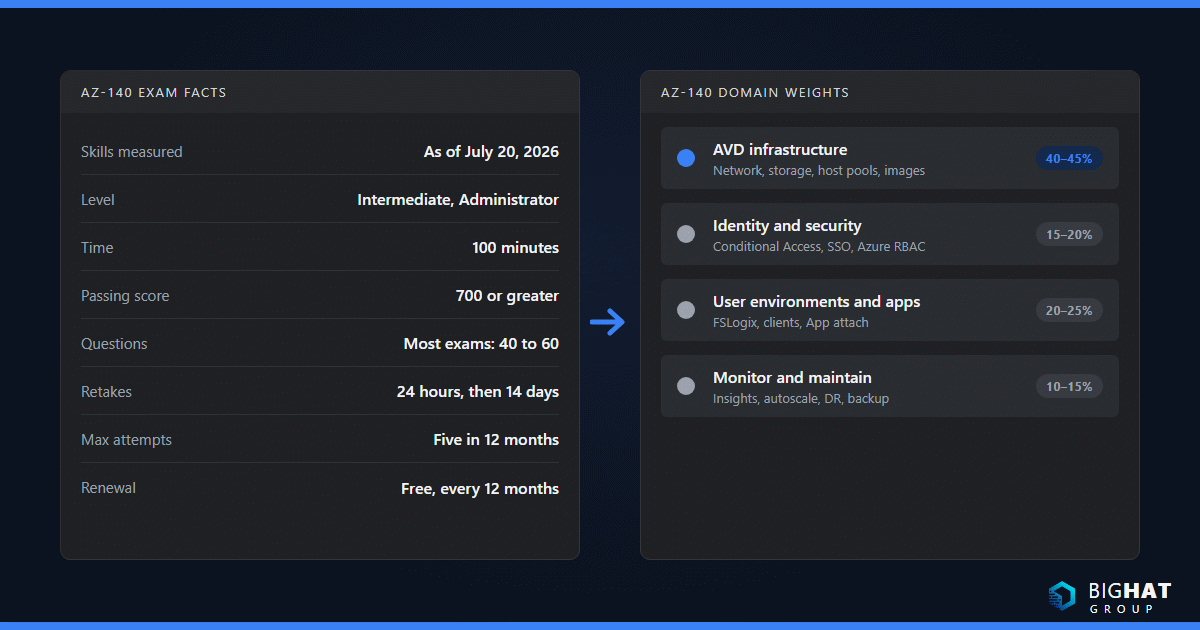
Exam AZ-140, Configuring and Operating Microsoft Azure Virtual Desktop, is the single exam for Microsoft Certified: Azure Virtual Desktop Specialty. Microsoft lists the credential as Intermediate level, Administrator role, a 12-month renewal frequency, and a last update of July 20, 2026. The official AZ-140 study guide carries the skills measured as of July 20, 2026 and a change log that rates the revision as minor adjustments inside the existing objective groups. Microsoft updates the English exam first and localizes about eight weeks later; the exam is offered in English, German, Spanish, French, Japanese, Portuguese (Brazil) and Chinese (Simplified).
The audience profile is specific. You should be a server or desktop administrator with subject matter expertise in designing, implementing, managing and maintaining Azure Virtual Desktop experiences and remote apps for any device. Microsoft expects you to work closely with Azure administrators, Azure architects, Microsoft 365 administrators, Azure security engineers and Azure Local administrators. You need experience with Azure compute, networking, identity, storage and resiliency, and you should be comfortable managing the deployment with the Azure portal, templates, scripting and command-line tools, not only the portal. Microsoft also notes that most questions cover generally available features, but preview features can appear if they are commonly used.
In my experience the people who pass comfortably have run at least one pooled host pool in production, debugged a profile that would not attach, and sat in a meeting where someone asked why users got two MFA prompts. The people who struggle have read the architecture diagram but never watched a session host sit in Unavailable because the agent could not reach a required URL. If that is you, build the lab first and read second. The exam is a good fit for infrastructure administrators moving off Remote Desktop Services, Citrix or Omnissa Horizon, Windows 365 administrators who want the depth AVD assumes, Azure administrators who inherited a host pool, and consultants who need a current credential for an AVD engagement.
The four domains and their weights
The exam has four functional groups. The infrastructure domain is the heaviest by a wide margin, and it is also the domain with the most numeric facts to memorize, so I weight the study plan toward it.
| # | Domain | Weight | What it really tests |
|---|---|---|---|
| 1 | Plan and implement an Azure Virtual Desktop infrastructure | 40–45% | Networking (RDP Shortpath, RDP Multipath, QoS, Private Link), storage for FSLogix, host pool architecture and licensing, deploying hosts with the portal, PowerShell, Azure CLI, ARM and Bicep, and session host images including Azure Compute Gallery |
| 2 | Plan and implement identity and security | 15–20% | Choosing AD DS, Microsoft Entra ID or Microsoft Entra Domain Services, Azure RBAC, Conditional Access, passwordless and smart card authentication, Entra single sign-on, Defender for Cloud and Defender for Endpoint, NSGs, UDRs, Azure Firewall, Bastion or JIT, App Control for Business, confidential VMs and Trusted Launch |
| 3 | Plan and implement user environments and apps | 20–25% | FSLogix profile containers, ODFC containers, Cloud Cache and application masking; choosing and deploying a client; redirection, multimedia redirection, Universal Print, RDP properties, session timeouts, Start VM on Connect, personal desktop assignment; application groups, RemoteApp, Microsoft 365 Apps, OneDrive, Teams with the WebRTC Redirector Service, browsers, and App attach packaging and delivery |
| 4 | Monitor and maintain an Azure Virtual Desktop infrastructure | 10–15% | Log collection, Azure Monitor and Azure Virtual Desktop Insights workbooks, capacity and performance optimization, autoscale, session management, update strategy, disaster recovery, multi-region design, and backup for FSLogix profiles, personal desktops and images |
Two details of the current outline matter, although neither is new on July 20 (that revision only renamed items such as App Control for Business and Microsoft Entra single sign-on). The networking objective, since the April 17, 2026 revision, says RDP Shortpath, RDP Multipath, and quality of service (QoS) policies, so Multipath is fair game. The apps objective says App attach, not MSIX app attach, which matches the current feature name and its per-user assignment model.
Domain 1: Plan and implement an Azure Virtual Desktop infrastructure (40–45%)
This domain has five objective groups. Read the Azure Virtual Desktop prerequisites page first; it is the single densest source of testable facts for the whole exam.
Networking
Every connection starts as a TCP 443 reverse connect through the Azure Virtual Desktop gateway, which is why no inbound port is required on a session host. RDP Shortpath then tries to establish a UDP transport and drops the TCP leg if it succeeds. Learn the two flavors. Managed networks need a private path such as ExpressRoute private peering or a site-to-site or point-to-site VPN; you enable a UDP listener on each session host, port 3390 by default, and only this mode supports QoS through DSCP marking and per-session throttling. Public networks use STUN for a direct UDP connection and fall back to a TURN relay when a direct path is blocked, for example behind symmetric NAT, which is what Azure Firewall and Azure NAT Gateway do. Each session uses a dynamic UDP port from 49152 to 65535 by default (65330 is reserved), and both STUN and TURN use UDP 3478 to the dedicated 51.5.0.0/16 relay range. If both managed and public Shortpath are available, the first connection established wins. The prerequisites page adds the planning number examiners like: round-trip latency from the client network to the Azure region should be under 150 ms.
Private Link has three sub-resources and the exam expects you to match them to workflows: connection on each host pool for the remote session, feed on each workspace for feed download, and global on a single workspace for initial feed discovery. You can create only one global endpoint for your entire deployment, Microsoft tells you to create a dedicated workspace with no application groups for it, and that workspace is always reachable from public routes even if you set it to private. UDP over Private Link is an opt-in checkbox on the host pool Networking page, and the portal refuses to save it unless you turn off both public-network Shortpath options. Two operational facts: you must enable Private Link for Azure Virtual Desktop on each subscription, and after changing a host pool’s private endpoint you restart the RDAgentBootLoader service on every session host. Monitoring connectivity is the last bullet; that is Azure Virtual Desktop Insights connection diagnostics, covered in Domain 4.
Storage for user data
The objective lists storage accounts, file shares and Azure NetApp Files, and the question underneath is always “which storage for FSLogix”. Microsoft’s FSLogix storage options page compares Azure Files (general purpose, all regions, Premium, Transaction Optimized, Hot or Cool tiers, 100 TiB per share, 10,000 handles per file share) with Azure NetApp Files (ultra performance or NetApp migrations, select regions, Ultra, Premium or Standard service levels, 100 TiB per volume) and Storage Spaces Direct (self-managed, cross-platform). Memorize the sizing example on that page: 10 IOPS per user in steady state and 50 IOPS at sign-in and sign-out, so 100 users need about 1,000 IOPS normally and about 5,000 while they arrive. The Azure Files scale targets page gives the handle limits that cap a share: 10,000 concurrent handles on the root directory and 2,000 per file and directory. The profile container guidance adds that the storage account must be in the same region as the session hosts.
Identity on the share is the second half of this objective. An Azure Files storage account can use one identity source: AD DS, Microsoft Entra Domain Services, or Microsoft Entra Kerberos. The Entra ID profile container walkthrough shows Entra Kerberos for hybrid identities on Entra joined or hybrid joined hosts with no line of sight to a domain controller, and, in the Azure public cloud only, for cloud-only and external identities. The client side needs the Kerberos/CloudKerberosTicketRetrievalEnabled policy and the LoadCredKeyFromProfile registry value, and cloud-only groups need the kdc_enable_cloud_group_sids tag on the storage account’s app registration. One 2026 item worth knowing: the April 2026 Windows Server update changes the default Kerberos encryption type from RC4 to AES-SHA1, and shares that were not upgraded can lose access.
Plan host pools and session hosts
The terminology page defines the objects you will be asked to place. A pooled host pool load-balances sessions across hosts and uses FSLogix for profiles; a personal host pool maps one user to one host, so profile data can live on the OS disk and the host is patched like a PC. Application groups are Desktop (pooled or personal) or RemoteApp (pooled only); a host pool can have one desktop application group and many RemoteApp groups, and the preferred application group type setting decides what a user sees if they are in both. An application group belongs to exactly one workspace. A host pool can be flagged as a validation environment to receive service updates first. Since 2026 you also choose a deployment scope at creation, Geographical or Regional, which only changes where metadata is stored and cannot be changed later.
Host pools also have a management approach that is fixed at creation. The host pool management approaches page contrasts standard management, where you create, update and scale hosts with your own tooling and a registration token, with a session host configuration, where the service owns the lifecycle through a session host configuration, a session host management policy, session host update and autoscale. Session host configuration is pooled only, cannot be added to an existing host pool, is not supported in West US 3, and does not let you register hosts built outside the service.
For load balancing, configure host pool load balancing is clear: breadth-first spreads sessions for performance and does not require a maximum session limit (new breadth-first pools default to 999999), while depth-first fills one host to its limit before the next and requires a maximum session limit. For personal pools the assignment type is Automatic by default or Direct, and multiple personal desktops per user requires Direct and the MultiplePersistent load balancer type.
Operating systems and licensing live on the prerequisites and licensing pages. Windows 11 and Windows 10 Enterprise multi-session and Enterprise are covered for internal use by Microsoft 365 E3, E5, A3, A5, F3, Business Premium or Student Use Benefit, Windows Enterprise E3 or E5, Windows Education A3 or A5, or Windows VDA per user. Windows Server 2016 through 2025 needs an RDS CAL with Software Assurance or an RDS User Subscription License. Per-user access pricing is only for external commercial purposes, is billed through an enrolled Azure subscription in two tiers (Apps, and Desktops + apps), charges only users who connected that month, is not available for Windows Server, and does not include Microsoft 365 Apps, Defender or Universal Print. Not supported as session hosts: 32-bit editions, N, KN and LTSC editions, Ultra disks for the OS disk, Virtual Machine Scale Sets and Arm64 VMs. Resource organization comes from the objective about resource groups, subscriptions and management groups; the practical rule from the FSLogix guidance is that the VMs in a host pool share one image, one size and one resource group.
Implement host pools and session hosts
You need to be able to create a host pool in the portal and know what the automation looks like in PowerShell (Az.DesktopVirtualization), Azure CLI (az desktopvirtualization), ARM templates and Bicep. Three facts trip people up. The Microsoft.DesktopVirtualization resource provider must be registered in the subscription. The account used to join a domain cannot have MFA enabled. User accounts must exist in the same Microsoft Entra tenant, and personal Microsoft accounts are not supported. Configuring licensing for session hosts means knowing which users are eligible for Windows client access and that Windows Server hosts need RDS CALs; the service does not install a separate AVD license on hosts whose users already hold an eligible license.
Create and manage session host images
Images can come from the Azure Marketplace, a managed image or an Azure Compute Gallery, which gives you versioning, region replication and sharing. Custom image templates wrap Azure VM Image Builder for AVD: a JSON template with a source image, distribution targets and customizations, built with a user-assigned managed identity, generalized with sysprep, and stored in a Compute Gallery, as a managed image, or both. The built-in scripts are the exam-friendly list: install FSLogix and configure Profile Container, enable FSLogix with Kerberos, enable RDP Shortpath for managed networks, enable screen capture protection, configure Teams optimizations, set time zone redirection, disable Storage Sense, install language packs, add or remove Microsoft 365 Apps and apply Windows Updates. Lifecycle management for pooled hosts means redeploying from an updated image rather than patching in place; for host pools with a session host configuration that is session host update, which replaces hosts in batches after an initial single host, keeps the hostname and AD computer object, and requires you to disable autoscale during the update.
Domain 2: Plan and implement identity and security (15–20%)
Identity integration
Microsoft Entra ID always authenticates the user to the service. The decision is where the session hosts are joined. The identities and authentication page and the prerequisites table list the supported scenarios: hosts joined to AD DS with users synced to Entra ID; hosts joined to Microsoft Entra Domain Services; hosts joined to Entra ID with hybrid users; and Entra-only with cloud-only users, including external identities. Identities that exist only in AD DS are not supported, and for hybrid identities either the UPN or the SID must match between AD DS and Entra ID. Management follows the join type: Entra Domain Services joined hosts cannot be managed by Intune, AD DS joined hosts need Entra hybrid join to use Intune, and Windows Server hosts cannot enroll in Intune at all.
Authentication has three phases and the exam likes to ask which control applies where. Cloud service authentication is to the Azure Virtual Desktop app (app ID 9cdead84-a844-4324-93f2-b2e6bb768d07) and is where Conditional Access and MFA are enforced. Remote session authentication is to the host, where Microsoft Entra single sign-on is the recommended answer: hosts must be Entra joined or Entra hybrid joined, you enable Entra authentication for RDP on the Windows Cloud Login service principal (isRemoteDesktopProtocolEnabled), you can hide the consent dialog by adding up to ten device groups, you create a Kerberos server object when hybrid joined hosts or on-premises resources are involved, and you set the Microsoft Entra single sign-on RDP property on the host pool, which is enablerdsaadauth:i:1 in PowerShell. In-session authentication uses WebAuthn redirection, on by default, so Windows Hello for Business and FIDO2 keys work inside the session. Smart cards and Windows Hello for Business need Kerberos, so the client needs line of sight to a domain controller or a KDC proxy (kdcproxyname).
For Azure RBAC, the built-in roles page is required reading. Desktop Virtualization Contributor manages everything except user assignment, which needs User Access Administrator on top. Host Pool Contributor, Application Group Contributor and Workspace Contributor split the plane for delegated admins. User Session Operator can message, disconnect and sign out users without touching hosts; Session Host Operator can remove hosts and change drain mode but cannot add hosts through the portal. The service principal roles matter for Domain 4: Power On Contributor for Start VM on Connect, Power On Off Contributor for autoscale, and Virtual Machine Contributor for dynamic autoscaling.
Conditional Access deserves its own hour. Microsoft now documents a two-policy structure: one policy targeting Azure Virtual Desktop for feed subscription and gateway authentication, and one targeting Windows Cloud Login (270efc09-cd0d-444b-a71f-39af4910ec45) for session host sign-in when SSO is enabled, with matching MFA grants and aligned sign-in frequency. Do not add Azure Virtual Desktop Azure Resource Manager Provider (50e95039-b200-4007-bc97-8d5790743a63); it only retrieves the feed. The Every time sign-in frequency is supported only on Windows Cloud Login. Legacy per-user MFA must be disabled or Entra joined hosts return “The sign-in method you’re trying to use isn’t allowed”. Do not block the Windows 365 app (0af06dc6-e4b5-4f28-818e-e78e62d137a5), because Windows App authenticates to it even for AVD-only users. Conditional Access requires Microsoft Entra ID P1 or P2 and cannot coexist with Security Defaults.
Security
The security recommendations page is the reference for the second objective group. Shared responsibility: Microsoft secures the virtualization control plane, physical hosts, network and datacenter; you own identity, user devices, app security, the session host OS, deployment configuration and network controls. Microsoft recommends Defender for Cloud with enhanced security features, Defender Antivirus with FSLogix VHD exclusions, Defender for Endpoint as the EDR, monthly patching of base images, idle and disconnect timeouts, screen locks, no local admin rights in multi-session, and App Control for Business or AppLocker for allow-listing. Drives, clipboard, printers and USB are not redirected by default; the recommended substitutes are OneDrive, clipboard transfer direction controls and Universal Print. Do not open inbound 3389; use just-in-time VM access or Azure Bastion for administration. When you add hosts in the portal the default security type is Trusted virtual machines, which satisfies the Windows 11 requirements, and confidential VMs are supported for Windows 11 and 10 Enterprise and multi-session and Windows Server 2022 and 2019. Two 2026 cautions from the same page: Administrator protection is not supported on session hosts and is turned on by the October 2026 Windows security update on session hosts where you apply the Windows security baselines through Group Policy, and BitLocker should not encrypt the disk holding FSLogix profiles.
Domain 3: Plan and implement user environments and apps (20–25%)
FSLogix
Know the four FSLogix objectives by name: Profile Containers, ODFC containers, Cloud Cache and application masking. A profile container stores the whole profile in a VHD or VHDX that attaches at sign-in; without it OneDrive is not supported in non-persistent VDI. Cloud Cache (CCDLocations) can write to multiple SMB shares or Azure page blobs, the only place page blobs are allowed, and is the tool for cross-region resilience of profiles. The registry values you will see in questions are Enabled and VHDLocations set to \\<storage-account>.file.core.windows.net\<share>, with DeleteLocalProfileWhenVHDShouldApply to clear stale local profiles. Two compatibility notes from the docs: new Teams needs FSLogix 2210 hotfix 3 or later, and hibernate on personal host pools is not supported with FSLogix or App Attach.
User experience and client settings
Windows App is the client for Azure Virtual Desktop, Windows 365, Microsoft Dev Box and remote PCs on Windows, macOS, iOS and iPadOS, Android and Chrome OS, web browsers and Meta Quest. It cannot sign in with a personal Microsoft account, and on Windows it does not connect to Remote Desktop Services, where the Remote Desktop app remains the answer. The inbox Remote Desktop Connection (MSTSC) and RemoteApp and Desktop Connections (RADC) clients are not supported for AVD at all. Media optimization for Teams needs the Remote Desktop WebRTC Redirector Service on each host (new Teams can also use SlimCore but Microsoft says to install the redirector for fallback), the Visual C++ Redistributable, and the IsWVDEnvironment registry value set to 1; pooled hosts need a per-machine Teams install; classic Teams in VDI reached end of support on October 1, 2026 and reaches end of availability on April 1, 2027. Multimedia redirection needs the Remote Desktop Multimedia Redirection Service plus the Edge or Chrome extension, and only works from Windows App or the Remote Desktop app on Windows.
RDP properties are set per host pool. Defaults worth memorizing because questions hinge on them: redirectclipboard:i:0, redirectprinters:i:0, audiocapturemode:i:0, drivestoredirect:s: empty, redirectsmartcards:i:1, redirectwebauthn:i:1, use multimon:i:1, dynamic resolution:i:1, screen mode id:i:2, enablerdsaadauth:i:0. Start VM on Connect is enabled per host pool on existing pools only, works for pooled and personal pools on Azure and Azure Local, needs the Desktop Virtualization Power On Contributor role for the service principal or a host pool managed identity, and for pooled pools starts a VM only when none is running and at most one every five minutes. Personal desktop assignment and unassignment are the Azure portal Assignment menu or Update-AzWvdSessionHost -AssignedUser.
Install and configure apps on a session host
Application groups and RemoteApp publishing are covered under host pools above. The 2026 content is App Attach. It mounts MSIX, Appx or App-V packages from an SMB share into the session and registers them per user, so users in the same host pool, even on the same multi-session host, can get different applications. Three things must line up: the package is assigned to the host pool, the user is in a Desktop or RemoteApp application group on that pool, and the package is assigned to the user or group. Disk image types are CimFS (recommended on Windows 11 for faster mount and unmount), VHDX, or VHD (not recommended). Registration is on-demand by default or log on blocking. Packages are active or inactive. Identity support: Microsoft Entra ID and AD DS are supported, Microsoft Entra Domain Services is not. For Azure Files with Entra joined hosts you assign Reader and Data Access to the Azure Virtual Desktop and Azure Virtual Desktop ARM Provider service principals; with AD DS you set Storage File Data SMB Share Reader as the default share permission and NTFS read for the computer objects. Azure NetApp Files works but needs AD DS joined hosts. Keep the App Attach share separate from the FSLogix share, exclude the images from antivirus, and sign packages with a code-signing certificate the hosts trust. The older MSIX app attach feature was deprecated on June 1, 2025, which is why the outline says App attach.
Domain 4: Monitor and maintain an Azure Virtual Desktop infrastructure (10–15%)
Monitor and manage the service
Azure Virtual Desktop Insights is a dashboard built on Azure Monitor Workbooks at aka.ms/avdi. Its configuration workbook enables diagnostic settings on the host pool (Management Activities, Feed, Connections, Errors, Checkpoints, HostRegistration, AgentHealthStatus) and the AVD workspace (Management Activities, Feed, Errors, Checkpoints), creates a Data Collection Rule for performance counters and Windows event logs, and deploys the Azure Monitor Agent with a system-assigned managed identity to the session hosts. Viewers need Desktop Virtualization Reader and Log Analytics Reader. Use a dedicated Log Analytics workspace. The automated agent deployment stops at 1,000 session hosts, after which Microsoft recommends installing the agent from an ARM template at build time. The legacy Log Analytics agent was deprecated on August 31, 2024, so any answer that mentions it is wrong.
Autoscale is the “optimize capacity” objective. A scaling plan has schedules with four phases, ramp-up, peak, ramp-down and off-peak, and ramp-up and ramp-down each set the load balancing algorithm, the minimum percentage of hosts and the capacity threshold, while peak and off-peak set the load balancing algorithm and inherit the capacity threshold from ramp-up and ramp-down respectively. One scaling plan can serve many host pools of the same type, but a host pool can have only one plan, and the plan runs in its configured time zone. Autoscale overrides drain mode and the host pool’s load balancing setting, so you tag maintenance hosts with the exclusion tag. You cannot run autoscale alongside the Azure Automation scaling script. Two scaling methods exist: power management autoscaling, which turns hosts on and off and is GA; and dynamic autoscaling, which also creates and deletes hosts, only for pooled host pools with a session host configuration, only in the Azure public cloud, labeled preview in the scenario docs. Before the first plan you assign Desktop Virtualization Power On Off Contributor to the Azure Virtual Desktop service principal, and dynamic plans also need Desktop Virtualization Virtual Machine Contributor. Personal pools get a different schedule that deallocates or hibernates on disconnect or sign-out. The consolidation math from the docs is worth writing down: required hosts equal total sessions (active and disconnected) divided by (maximum session limit times capacity threshold).
Updates, backups and disaster recovery
The update strategy answer depends on host pool type: redeploy pooled hosts from an updated image (session host update if you have a session host configuration), patch personal hosts with Windows Update, Configuration Manager or Intune. For resilience, the disaster recovery concepts page is explicit that Azure Virtual Desktop has no native disaster recovery feature; you compose one from availability zones, Azure Site Recovery for personal hosts, Azure Files redundancy or Azure NetApp Files cross-region replication for profiles, Compute Gallery replication for images, and an active-active or active-passive multi-region design. App Attach shares must be replicated too, and a DFS namespace can keep one share path across regions. The service architecture page covers what Microsoft protects: the web, broker, gateway and database components run in about 40 regions, Traffic Manager fronts the web service and Azure Front Door fronts the gateway, and failover of the geographical database affects new connections only.
Eight-week study plan
Eight weeks at six to eight hours a week is realistic for an administrator who already runs Azure. Microsoft’s Course AZ-140T00-A is four days and maps to five self-paced learning paths; the plan below uses the same paths in exam-weight order and pairs each with a lab you can run in a trial subscription.
| Week | Focus | Learn material | Lab in a trial subscription |
|---|---|---|---|
| 1 | Architecture, objects, planning | Plan an Azure Virtual Desktop implementation; terminology; service architecture | Register Microsoft.DesktopVirtualization, build a virtual network, deploy a pooled host pool with two Windows 11 Enterprise multi-session hosts joined to Entra ID, publish a desktop, connect with Windows App |
| 2 | Networking | Implement an Azure Virtual Desktop infrastructure, RDP Shortpath and Private Link docs | Confirm UDP transport in Insights connection details, limit the Shortpath port range, add a connection private endpoint to the host pool and set public access to clients only |
| 3 | Storage and FSLogix | Same path; FSLogix storage options; Entra Kerberos walkthrough | Premium Azure Files share with Entra Kerberos, share-level RBAC and NTFS permissions, VHDLocations on both hosts, verify the <SID>_<username> folder appears |
| 4 | Host pools and images | Same path; custom image templates; session host update | Create a Compute Gallery and a custom image template with FSLogix and Teams optimizations, build it, deploy a personal host pool from the image with Direct assignment |
| 5 | Identity and security | Manage access and security for Azure Virtual Desktop | Enable Entra SSO, create the two Conditional Access policies, verify one MFA prompt, assign User Session Operator to a test admin, confirm Trusted launch and enable Defender for Cloud |
| 6 | User environments and apps | Manage user environments and apps for Azure Virtual Desktop | Customize RDP properties, publish a RemoteApp group, package an app with the MSIX Packaging Tool, add it to App Attach and assign it to one user only, install the WebRTC Redirector Service |
| 7 | Monitor and maintain | Monitor and maintain an Azure Virtual Desktop infrastructure | Run the Insights configuration workbook, create a power management scaling plan with an exclusion tag, enable Start VM on Connect, snapshot the profile share, replicate the image to a second region |
| 8 | Review | Official study guide, practice assessment, exam sandbox | Take the free practice assessment twice, reread the traps section below, rebuild anything you scored under 70 percent on |
Azure Dev/Test pricing lets end users connect to an AVD deployment for acceptance testing without a separate license entitlement, which is how I keep a lab tenant compliant without buying Microsoft 365 seats for test accounts.
Hands-on labs that matter
If you only have time for six labs, run these. Each maps to a cluster of exam objectives and produces a behaviour you will remember under pressure.
- Pooled and personal host pools side by side. Deploy one of each, set breadth-first on the pooled pool and watch the 999999 default session limit, switch to depth-first and see the portal demand a real limit. Assign a user directly to a personal host, unassign, reassign. You now understand the terminology, load balancing and assignment objectives from experience, not reading.
- FSLogix on Azure Files with Entra Kerberos. Enable Entra Kerberos on the storage account, assign share-level roles, set NTFS permissions, configure
VHDLocationsby Intune settings catalog, and sign in. If the profile does not attach, you will learn what theCloudKerberosTicketRetrievalEnabledpolicy does the hard way, which is the point. - Image through Azure Compute Gallery. Build a custom image template with the built-in FSLogix, Teams and RDP Shortpath scripts, distribute to a gallery, create a new image version, and redeploy a session host from it. Then try the same change with session host update on a pool that has a session host configuration.
- Autoscale plan. Assign Power On Off Contributor to the service principal at subscription scope, create a plan with ramp-up at 30 percent capacity threshold, sign in with four test users against a maximum session limit of five while two hosts are running, and watch a third host power on when the fourth session pushes used capacity to 40 percent, exactly as the docs’ Scenario 1 describes. Tag one host with the exclusion tag and confirm autoscale leaves it alone.
- Conditional Access for AVD. Build the two-policy structure, sign in with Windows App, and read the Entra sign-in logs for both apps. Then deliberately set Every time on the Azure Virtual Desktop app and observe the repeated prompts the documentation warns about before you fix it.
- Insights workbook. Run the configuration workbook end to end, including the Data Collection Rule and the Azure Monitor Agent, then open the connection diagnostics for your own session and find the transport type, round-trip time and gateway region. That single view answers most of the monitoring questions.
High-leverage facts that are easy to get wrong
These are the details I see experienced administrators miss, each verified against the current documentation.
- Shortpath ports. Managed networks listen on UDP 3390 by default; public networks use a dynamic range of 49152 to 65535 plus UDP 3478 to 51.5.0.0/16 for STUN and TURN. If the question mentions QoS or DSCP, the answer is managed networks.
- TURN exists for symmetric NAT. Azure Firewall and Azure NAT Gateway produce symmetric NAT, so a direct STUN path fails and the relayed TURN path is what keeps UDP alive.
- One global private endpoint. Only one global sub-resource endpoint per deployment, on a dedicated workspace with no application groups, and that workspace is always publicly reachable.
- Depth-first requires a maximum session limit. Breadth-first does not, and a breadth-first pool created without one defaults to 999999.
- RemoteApp groups are pooled only. Desktop application groups work on pooled and personal pools; a host pool holds one desktop group and many RemoteApp groups.
- Session host configuration is set at creation. You cannot add it to an existing host pool, it is pooled only, and West US 3 is unsupported for it.
- Entra SSO needs Entra joined or hybrid joined hosts. Hosts joined only to Entra Domain Services or AD DS are not supported, and hybrid joined hosts need a Kerberos server object.
- Two Conditional Access apps. Azure Virtual Desktop for the service, Windows Cloud Login for the host. Every time works only on Windows Cloud Login. Never add the ARM Provider app.
- Per-user MFA breaks Entra joined hosts. Disable legacy per-user MFA and use Conditional Access exclusively.
- Entra Domain Services hosts cannot use Intune or App Attach’s identity model. Intune does not manage Entra Domain Services joined hosts, and App Attach does not support Entra Domain Services as an identity provider.
- Per-user access pricing is external only. It never licenses your own staff or contractors, is not available for Windows Server, and excludes Microsoft 365 Apps.
- Start VM on Connect versus autoscale roles. Start VM on Connect needs Power On Contributor; autoscale needs Power On Off Contributor; dynamic autoscaling adds Virtual Machine Contributor.
- Autoscale wins over drain mode and load balancing. Use the exclusion tag for maintenance and expect the plan’s algorithm to override the host pool setting.
- Hibernate is incompatible with FSLogix and App Attach. Do not enable it on personal pools that use either.
- Redirection defaults are off. Clipboard, drives, printers and USB are not redirected unless you set the RDP property; smart card and WebAuthn redirection are on.
- Windows App does not do RDS on Windows and cannot use a personal Microsoft account. MSTSC and RADC are unsupported for AVD.
- The Log Analytics agent is gone. Insights uses the Azure Monitor Agent with a Data Collection Rule; the automated deployment stops at 1,000 hosts.
- Session host update needs autoscale off. Enable it again only after the update finishes, and expect to reinstall the Azure Monitor Agent through policy.
Where the 2026 features sit relative to the exam blueprint
Readers of my AVD What’s New series ask whether the new features are on the exam. Here is the honest mapping against the July 20, 2026 outline.
Azure Virtual Desktop Hybrid. Microsoft moved AVD on Arc-enabled servers to public preview in May 2026 and to general availability in September 2026. The hybrid overview and deployment guide describe it: session hosts on any on-premises hypervisor or headless physical Windows Server, onboarded with the Azure Arc connected machine agent and registered by the Microsoft.AzureVirtualDesktop.CloudDeviceExtension extension into a standard host pool whose managed identity has Reader on the Arc resource group. Windows 11 and 10 Enterprise multi-session are not supported, Windows Server hosts must be AD DS or hybrid joined, and power management, autoscale, Start VM on Connect and session host configuration are all unsupported. Licensing is the user’s OS entitlement plus an Azure Virtual Desktop Hybrid service user license. Blueprint status: the outline does not name Hybrid or Azure Arc. It does list Azure Local administrators in the audience and keeps the Azure Local activation and image guidance on the prerequisites page. Know what Hybrid is, know its exclusions, and do not expect a configuration question about it.
Automated host pools (session host configuration). Available since June 2026 and documented without a preview label. Blueprint status: the outline lists “configure host pool and session host settings”, “plan and implement lifecycle management for images” and “implement autoscaling in host pools”, none of which name a session host configuration, but the terminology and management-approach pages that the outline relies on describe both approaches. Learn the comparison table; a question that contrasts a registration token workflow with service-managed updates is plausible.
Dynamic autoscaling. Available since June 2026 for pooled host pools with a session host configuration, Azure public cloud only, and still labeled preview in the scenario documentation with a preview PowerShell module. Blueprint status: “implement autoscaling in host pools” is on the outline and power management autoscaling is the GA baseline that questions will assume. Microsoft’s study guide says preview features appear only if commonly used, so learn the dynamic plan’s extra parameters (minimum and maximum host pool size, minimum percentage of active hosts) and its extra role, then spend your time on the GA behaviour.
RDP Multipath has been generally available since July 2025, its redundant TCP transport paths reached general availability in July 2026, and it is named explicitly in the networking objective, so it is in scope. Regional host pools and managed identities for host pools went GA in September 2026 and show up as the deployment scope and identity choices when you create a host pool; a future service update will require a managed identity on host pools with a session host configuration. Azure Virtual Desktop (classic) retired on September 30, 2026 and connections to classic resources are now blocked, so classic-only app IDs and object names are history.
Exam day and renewal
The certification page says you have 100 minutes to complete the assessment; Microsoft’s exam duration page explains that seat time adds roughly 20 minutes for instructions, the candidate agreement and comments, and that most Microsoft certification exams contain 40 to 60 questions. A score of 700 or greater passes. The exam is proctored through Pearson VUE, at a test center or online, and may include interactive components; the free exam sandbox shows every question type. Five minutes of break time is built into the exam, the clock keeps running during a break, and you cannot return to questions seen before the break. Microsoft’s exam-experience page says Microsoft Learn is available during associate and expert role-based exams and not during Fundamentals exams; it does not call out specialty exams separately, so read the overview screens when your exam starts rather than planning around it. Register with a personal Microsoft account so your transcript survives a job change, and check the price with the Schedule exam link because Microsoft prices by the country or region where the exam is proctored.
If you fail, the retake policy imposes a 24-hour wait after the first attempt, 14 days between later attempts, and a maximum of five attempts in 12 months. The certification expires after 12 months. Renewal is free, online, unproctored and open book, taken any time inside the six-month window before expiry, and a pass extends the certification one year from the original expiry date. Renewal retakes are unlimited: immediately after a first fail, then at least 24 hours between attempts.
Who this guide is for
- Infrastructure administrators replacing Remote Desktop Services, Citrix or Omnissa Horizon with Azure Virtual Desktop who need the Azure-side depth the exam assumes
- Windows 365 administrators who manage Cloud PCs and are being asked to run a pooled host pool for a line-of-business app
- Azure administrators and architects who inherited an AVD deployment and want the identity, networking and storage model straight before the next redesign
- Consultants and MSP engineers who need a current credential and a defensible checklist for an AVD engagement
- Anyone studying for AZ-140 in 2026 who wants to know which of this year’s features are on the outline and which are not
AZ-140 exam FAQ
Is AZ-140 the only exam for the Azure Virtual Desktop Specialty certification in 2026?
Yes. Exam AZ-140, Configuring and Operating Microsoft Azure Virtual Desktop, is the single exam for Microsoft Certified: Azure Virtual Desktop Specialty. Microsoft last updated the certification on July 20, 2026 with a revised skills measured outline, and the change log rates the revision as minor; the four domains and their weights did not change.
How long is the AZ-140 exam and what score do I need?
The certification page states you have 100 minutes to complete the assessment, and a score of 700 or greater passes. Microsoft does not publish a question count for individual exams; it says most certification exams contain between 40 and 60 questions. The exam is proctored through Pearson VUE and may include interactive components, so run the free exam sandbox before exam day.
How much does the AZ-140 exam cost?
Microsoft does not list a single price on the certification page. It states that the price is based on the country or region in which the exam is proctored, so use the Schedule exam link on the Microsoft Learn certification page to see the price for your region. A failed attempt is paid again; the annual renewal assessment is free.
Do I need an Azure subscription to study for AZ-140?
You can learn the concepts from the documentation, but the exam tests choices between host pool types, identity scenarios, load balancing algorithms and scaling plan phases, and those stick after you configure them. An Azure account with an active subscription is the first prerequisite on the Azure Virtual Desktop prerequisites page, and Azure Dev/Test pricing lets test users connect for acceptance testing without a separate license entitlement. A few small session hosts (two for the pooled pool, a third for the autoscale lab and one for a personal pool), separate premium file shares for FSLogix and App Attach, and a Log Analytics workspace are enough for every lab in this guide.
How do I renew the Azure Virtual Desktop Specialty certification?
The certification renews every 12 months. Microsoft opens a six-month eligibility window before the expiry date, during which you take a free, unproctored, open-book assessment on Microsoft Learn. Passing extends the certification one year from the original expiry date. There is no limit on renewal retakes: you can try again immediately after a first fail and must wait at least 24 hours between later attempts.
Study checklist
- Download the official AZ-140 study guide and confirm you are reading the skills measured as of July 20, 2026, not an older version.
- Register the Microsoft.DesktopVirtualization resource provider in a trial subscription and deploy a pooled and a personal host pool in week one.
- Write the RDP Shortpath numbers on a card: UDP 3390 managed, 49152 to 65535 public, UDP 3478 to 51.5.0.0/16, 150 ms latency target.
- Draw the three Private Link sub-resources and mark the global endpoint as one per deployment on a dedicated workspace.
- Build FSLogix on Azure Files with Entra Kerberos and keep the 10 and 50 IOPS per user sizing figures and the 10,000 handle limit in your notes.
- Memorize the licensing table: which SKUs cover Windows client hosts, why Windows Server needs RDS CALs, and the two per-user access pricing tiers.
- Build a custom image template, distribute it to a Compute Gallery, and redeploy a host from a new version.
- Enable Entra single sign-on and create the two Conditional Access policies; read the sign-in logs for both apps.
- Learn the fourteen Desktop Virtualization built-in roles and which three the service principal needs for Start VM on Connect, autoscale and dynamic autoscaling.
- Create a scaling plan, trigger a scale-out by exceeding the capacity threshold, and test the exclusion tag.
- Package one application with the MSIX Packaging Tool, deliver it with App Attach to a single user, and confirm a second user on the same host does not see it.
- Run the Insights configuration workbook and read your own connection’s transport and round-trip time.
- Write a one-page DR design covering hosts, profiles, images, App Attach shares and identity for a second region.
- Read the 2026 features section once more and separate what is GA and listed from what is preview or unlisted.
- Take the practice assessment twice, launch the exam sandbox, and book the exam with a personal Microsoft account.
Need a second pair of hands? Big Hat Group provides Azure Virtual Desktop architecture consulting for organizations in the United States and Canada, from a two-week health check to a full migration, plus Windows 365 training for teams that run both platforms. Book a discovery call to talk through your environment.
Sources
- Study guide for Exam AZ-140: Configuring and Operating Microsoft Azure Virtual Desktop
- Microsoft Certified: Azure Virtual Desktop Specialty
- Course AZ-140T00-A: Configure and Operate Microsoft Azure Virtual Desktop
- Exam duration and exam experience
- Exam and Applied Skills assessment lab retake policies
- Microsoft Certification renewal
- Prerequisites for Azure Virtual Desktop
- Azure Virtual Desktop terminology
- Host pool management approaches
- Configure host pool load balancing
- Configure personal desktop assignment
- RDP Shortpath
- Azure Private Link with Azure Virtual Desktop
- FSLogix container storage options
- User profile management with FSLogix profile containers
- Store FSLogix profile containers on Azure Files using Microsoft Entra ID
- Azure Files scale and performance targets
- Licensing Azure Virtual Desktop
- Custom image templates
- Session host update
- Azure Virtual Desktop identities and authentication
- Configure single sign-on using Microsoft Entra ID
- Enforce Microsoft Entra multifactor authentication using Conditional Access
- Built-in Azure RBAC roles for Azure Virtual Desktop
- Security recommendations for Azure Virtual Desktop
- What is Windows App?
- Supported RDP properties
- Configure Start VM on Connect
- Use Microsoft Teams on Azure Virtual Desktop
- Multimedia redirection for video playback and calls
- App Attach in Azure Virtual Desktop
- Enable Insights to monitor Azure Virtual Desktop
- Autoscale scaling plans and example scenarios
- Create and assign an autoscale scaling plan
- Azure Virtual Desktop disaster recovery concepts
- Azure Virtual Desktop service architecture and resilience
- Azure Virtual Desktop Hybrid overview
- Deploy Azure Virtual Desktop Hybrid on-premises
- What’s new in Azure Virtual Desktop
- Plan an Azure Virtual Desktop implementation
- Implement an Azure Virtual Desktop infrastructure
- Manage access and security for Azure Virtual Desktop
- Manage user environments and apps for Azure Virtual Desktop
- Monitor and maintain an Azure Virtual Desktop infrastructure