
Every Azure Virtual Desktop environment I inherit has the same two problems: nobody can tell me which image version the session hosts came from, and the last patch cycle was done by signing in to 30 virtual machines one at a time. This guide is the process I use instead. It covers what belongs in the image, how to build and version it in Azure Compute Gallery, how to roll it out with session host update or the classic drain-and-replace pattern, how to roll back when a build goes wrong, how long each step really takes, and where Spot VMs and ephemeral OS disks fit in the cost picture. Everything here is checked against the Microsoft Learn pages linked inline and listed under Sources.
Image strategy: gallery image or custom golden image
You have two starting points. The first is the Azure Marketplace image for Windows 11 Enterprise multi-session, which Microsoft refreshes monthly after the security patch release and which ships with FSLogix preinstalled. The Microsoft 365 Apps variant arrives around the middle of the third week of the month. If your line-of-business apps install cleanly through Intune, you can run on Marketplace images alone and skip the image pipeline entirely.
The second is a custom image, which Microsoft’s golden image guide describes as a Marketplace VM that you customize, generalize with Sysprep and capture. The guide recommends Azure Compute Gallery over a standalone managed image for production because of replication and versioning, and it is blunt about the mistakes it sees: do not install the Azure Virtual Desktop agent in the image, do not capture a VM that is already in a host pool, remove the VM from the domain before Sysprep, do not capture the same VM twice, and do not build a new base VM from an existing custom image. Start fresh from a Marketplace image each time.
What belongs in the image, and what belongs in Intune or FSLogix
My rule is simple: the image holds things that are slow to install or must be present before the first user signs in. Everything else moves to a layer that can change without a rebuild.
| Layer | Put here | Why |
|---|---|---|
| Image (Compute Gallery version) | OS build, cumulative update, Microsoft 365 Apps, Teams with the WebRTC redirector, FSLogix agent, large or finicky line-of-business installers, Visual C++ runtimes, Virtual Desktop Optimization Tool changes | Slow to install, needed at first sign-in, benefits from a tested rebuild |
| Intune or Group Policy | Settings catalog policies, Defender configuration, certificates, small system-context apps, Windows Update quality-update settings | Session host update does not preserve files, registry keys or certificates added by hand, so configuration must come from management tooling or the image |
| FSLogix profile container | User profile, Office cache, OneDrive | Profiles roam between hosts so you can delete a host without losing anything |
| Custom configuration script | Last-mile tweaks that must run at provisioning | Runs from the session host configuration on every new host |
Two Intune points matter for images. The Intune multi-session documentation says Intune does not support cloned images of a device that is already enrolled, so never enroll the build VM. Apps for multi-session must be assigned as Required in the system context, which is a good forcing function for what goes in the image: anything that only installs per user belongs there, not in Intune.
Building and versioning the image in Azure Compute Gallery
Image Builder and custom image templates versus manual Sysprep
Manual builds work for a handful of hosts; they stop working the first time two admins build different images in the same month. Custom image templates in the Azure Virtual Desktop portal are Microsoft’s answer. They wrap Azure VM Image Builder, take a Marketplace, gallery, managed image or existing template as the source, run built-in scripts (install and configure FSLogix, Teams optimizations, language packs, time zone redirection, RDP Shortpath, screen capture protection, disable Storage Sense, apply Windows updates) plus your own scripts from a public URL, run Sysprep for you and distribute the result to Compute Gallery or a managed image. The build runs under a user-assigned managed identity in a staging resource group named IT_<ResourceGroupName>_<TemplateName>_<GUID>, and the customization.log in the packerlogs container is where you look when something fails.
If you prefer code, the underlying Image Builder template gives you the same customizers in Bicep or JSON. Two defaults matter for planning: buildTimeoutInMinutes defaults to 240 minutes, with a maximum of 960, and Microsoft recommends not going below 60 minutes for Windows. The WindowsUpdate customizer can fail with 0x80240016 if a restart or installer is still pending, so put a WindowsRestart step before it. Microsoft’s AVD Image Builder walkthrough also notes that the build VM should be Standard_D2_v2 or larger for Windows.
Versioning convention and replication regions
An Azure Compute Gallery has three levels: the gallery, the image definition (publisher, offer, SKU, OS state, Hyper-V generation and security type) and the image version. Image version names must be MajorVersion.MinorVersion.Patch, and latest resolves to the highest major, then minor, then patch. I use a convention that encodes the Windows build and the patch month, for example 2026.11.0 for the November 2026 cumulative update on the current image definition, with 2026.11.1 for a hotfix rebuild in the same month. Keep the publisher, offer and SKU values aligned with the Marketplace image you started from so that OS versions stay obvious in the portal, which is a documented best practice.
For replication, the Compute Gallery overview gives concrete guidance: keep at least three replicas for production images, add one replica for every 20 VMs you create concurrently, store versions on ZRS where the region supports it, keep separate galleries for production and test, and keep two galleries in different regions for disaster recovery. The AVD documentation adds that session host update wants at least two replicas of the image you point it at and that the session host update pages still list a gallery image in a different subscription from the host pool as unsupported, although the September 2025 What’s new entry added cross-subscription images for host pools with a managed identity, so test it before relying on it. Replication to additional regions “can take a few hours in some cases”, which matters for the timeline later.
Three safety settings are worth turning on from day one. Set excludeFromLatest on a version until it has passed validation so nothing auto-deploys from it. Set safetyProfile.allowDeletionOfReplicatedLocations to false so nobody removes a region that live hosts depend on. Put a resource lock on the gallery. If you use Trusted Launch, note that image definitions created with API version 2025-03-03 or later default to Hyper-V generation 2 and TrustedLaunchSupported, and the preview Trusted Launch validation adds at least an hour before the version is marked valid.
AVD image update and host pool patching strategy
The strategy question comes down to one decision made when the host pool is created: standard management or a session host configuration. Microsoft’s host pool management approaches page is explicit that the approach cannot be changed later and that session host configuration is for pooled host pools only. I covered the launch of these automated host pools in the June 2026 Azure Virtual Desktop update roundup; this section is the operational detail.
Session host update for automated host pools
A host pool with a session host configuration carries two sub-resources. The session host configuration says what a host should be: image, VM size, OS disk type, security type, domain join, network, availability zones, admin credentials from Key Vault, tags and an optional custom configuration script. The session host management policy says how hosts are created and updated: time zone, batch size (the portal default is 1), log-off delay (default 2 minutes, configurable from 0 to 60), the sign-out message and whether original VMs are deleted.
When you change the configuration and schedule an update, session host update does the following, in Microsoft’s words with my paraphrase:
- It picks the first batch by name, sends the notification message to connected users and waits the configured delay before signing out anyone left.
- It puts those hosts in drain mode and removes them from the host pool. Active Directory computer objects are not deleted.
- It creates the same number of new VMs from the updated configuration, named
SessionHostName-DateTime, keeping the original OS hostname so domain-joined hosts inherit their existing computer objects and Group Policy scope. - It joins the new hosts to the pool and disables drain mode.
- It deletes the original VMs.
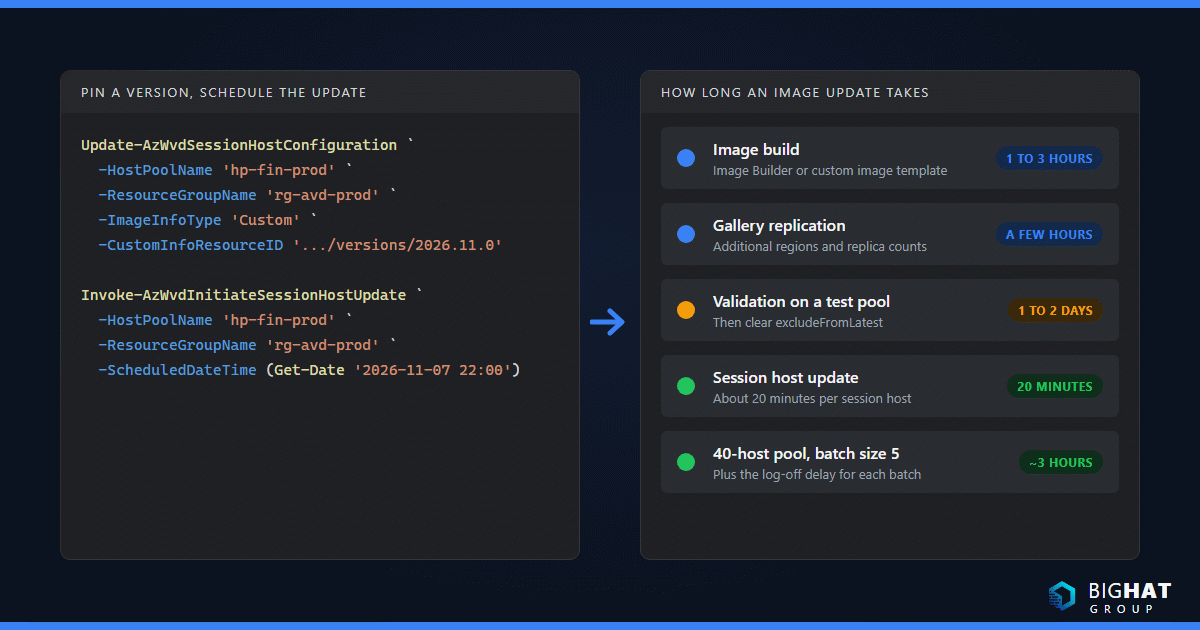
Before the batches start, a single host called the initial is updated on its own to prove the end-to-end process. If the initial fails, the update stops. Microsoft’s own example is a 10-host pool with a batch size of three: one initial, then three batches of three, with at least seven hosts available throughout. You can schedule the update up to two weeks ahead, and the configuration guide states that it takes around 20 minutes per session host, with the hosts in each batch updated concurrently and batches run one after another.
The PowerShell path uses the preview Az.DesktopVirtualization module (version 5.3.0 or later). Point the configuration at a specific gallery version, tune the policy and schedule:
Update-AzWvdSessionHostConfiguration -HostPoolName 'hp-fin-prod' -ResourceGroupName 'rg-avd-prod' `
  -ImageInfoType 'Custom' `
  -CustomInfoResourceID '/subscriptions/<sub>/resourceGroups/rg-avd-images/providers/Microsoft.Compute/galleries/acg_avd/images/win11-ms-m365/versions/2026.11.0'

Update-AzWvdSessionHostManagement -HostPoolName 'hp-fin-prod' -ResourceGroupName 'rg-avd-prod' `
  -ScheduledDateTimeZone 'Mountain Standard Time' -UpdateMaxVmsRemoved 5 `
  -UpdateLogOffDelayMinute 15 -UpdateLogOffMessage 'Maintenance: save your work and sign out.' `
  -UpdateDeleteOriginalVM $true

Invoke-AzWvdInitiateSessionHostUpdate -HostPoolName 'hp-fin-prod' -ResourceGroupName 'rg-avd-prod' `
  -ScheduledDateTime (Get-Date '2026-11-07 22:00')

Get-AzWvdSessionHostManagementsUpdateStatus -HostPoolName 'hp-fin-prod' -ResourceGroupName 'rg-avd-prod' |
  Format-List PercentComplete, ProgressSessionHostsCompleted, ProgressSessionHostsRollbackFailed
What session host update replaces is the whole pile of scripts that used to do this: the runbook that set drain mode, the pipeline that built new VMs, the cleanup job that deleted the old ones and the spreadsheet that tracked which host was on which image. What it does not replace is configuration management. Microsoft’s guidance is that anything added to a host by hand is gone after an update, so it must live in the image, in Intune or Group Policy, or in the custom configuration script. Two operational rules from the documentation: disable autoscale on the pool for the duration of the update or it can fail with a runtime error, and if you build the new image from an existing session host, delete C:\packages\plugin before capturing or the DSC extension will not join the new VMs.
The classic rolling update for standard host pools
Standard host pools get none of this, and Microsoft’s comparison table says so: you “use your own existing tools and processes, such as automated pipelines and custom scripts”. The pattern is the same one session host update automates, done by you:
- Deploy new session hosts from the new image version into the same pool, using a registration token generated for that pool. Name them so you can tell new from old.
- Put the old hosts in drain mode so new connections land on the new hosts while existing sessions stay put. If autoscale is assigned, tag the old hosts with the scaling plan’s exclusion tag first, because autoscale overrides drain mode.
- Message users, wait for sessions to clear or sign them out at the maintenance window.
- Remove the old hosts from the pool and delete the VMs, disks and NICs.
Update-AzWvdSessionHost -ResourceGroupName 'rg-avd-prod' -HostPoolName 'hp-eng-std' `
  -Name 'avd-eng-07.corp.contoso.com' -AllowNewSession:$false
Drain mode needs the Desktop Virtualization Session Host Operator role, and the portal can show a stale state for about 60 seconds after you flip it. Third-party tooling such as Nerdio Manager automates this same sequence for standard pools; if you already own it, use it. If you are building new pools, create them with a session host configuration and let the platform do it.
In-image rebuild versus in-place patching
The session host update page states that replacing hosts from an updated image “aligns with the recommendation of managing updates within the core source image, rather than distributing and installing updates to each session host individually”. Microsoft’s security recommendations add that base images should be patched monthly. That is the strategy: the monthly cumulative update ships in a new image version and hosts are replaced from it.
In-place patching still has a job, which is the out-of-band security fix that cannot wait for the next build. The documented options for Windows 11 Enterprise multi-session are narrower than people expect:
| Method | Documented position for Windows Enterprise multi-session | Use it for |
|---|---|---|
| Intune Settings catalog, Windows Update for Business category | Supported for quality updates: active hours, deferral, deadline and grace period, pause. Update rings are not supported. | Keeping Entra-joined or hybrid-joined hosts current between rebuilds |
| Microsoft Configuration Manager | Documented: a query on OS SKU 175 feeds an automatic deployment rule using Windows client updates | Hybrid-joined estates that already run Configuration Manager |
| WSUS | Multi-session FAQ confirms feature updates via WSUS; Microsoft’s update-methodology page rates WSUS feature updates as not recommended for multi-session | Isolated networks |
| Azure Update Manager | Not supported for Windows client or multi-session; recommended for Windows Server | Windows Server-based session hosts |
| Automatic VM guest patching | Custom images not supported; supported list is Windows Server | Not applicable to multi-session |
| Feature update (for example 24H2 to 25H2) | Recommended through session host update or a new Compute Gallery image; Configuration Manager is supported, WSUS works but isn’t recommended, and Setup.exe or ISO upgrades aren’t supported | A new image, in practice |
The feature-update row settles the debate for pooled pools in practice: Microsoft recommends shipping a feature update as a new image, and an OS version upgrade such as Windows 10 to Windows 11 is never supported in place. Intune also treats multi-session as its own OS edition, so filter the Settings catalog on OS edition == Enterprise multi-session when you build the quality-update policy, or you will spend an afternoon wondering why nothing applied.
Recommended cadence
| Cadence | Action | Mechanism |
|---|---|---|
| Second Tuesday, same week | Build image version YYYY.MM.0 from the latest Marketplace release or your own base, with the month’s cumulative update, app updates and FSLogix | Custom image template or Image Builder pipeline, distributed to the gallery with excludeFromLatest set |
| Within three business days | Validate on a test host pool with the same configuration, then clear excludeFromLatest | Session host update on the validation pool |
| Following weekend maintenance window | Roll production host pools to the new version in batches | Session host update, or drain and replace for standard pools |
| Out of band | Apply a critical security fix to running hosts if the next build is more than a few days away | Settings catalog quality-update deadline, Configuration Manager or WSUS |
| Twice a year | Move to the next Windows feature update by building on the new Marketplace image | New image definition or version, full host replacement |
| Quarterly | Prune image versions older than the last two known-good releases, review replica counts and regions | Gallery housekeeping |
AVD image versioning and rollback strategies
Rollback is cheap when the previous image version still exists and expensive when someone deleted it to save a few gigabytes of snapshot storage. Keep at least the last two known-good versions, mark the current one in the image definition’s release notes, and set BlockDeletionBeforeEndOfLife or a resource lock on anything production depends on.
Pin a previous image version
Never point a production host pool at latest. A session host configuration references an exact version resource ID, and dynamic autoscale creates new hosts from whatever that configuration says, so pinning gives you deterministic hosts and a trivially reversible change. Rolling back a host pool with a session host configuration is the same operation as rolling forward: run Update-AzWvdSessionHostConfiguration with the previous version’s resource ID and schedule another session host update. Microsoft’s own rollback-awareness shows up in the status object as ProgressSessionHostsRollbackFailed, so watch that counter.
How session host update handles failure
The documentation gives a clear failure model. If the initial host fails, the update stops before any batch runs. If a batch fails, you can pause, resume, cancel or retry from the portal or with Invoke-AzWvdControlSessionHostUpdate -Action Retry; retrying typically clears the intermittent AgentRegistrationFailureGeneric error seen with large batch sizes. A paused update that is not resumed within two weeks is cancelled automatically. A host that cannot be recovered is left in drain mode. The important caveat is that cancelling part way leaves a mixed pool, with hosts on two OS builds or even two domains, and Microsoft tells you to schedule another update as soon as possible to restore parity. In practice that means a cancelled update is immediately followed by a rollback update to the previous version, not by leaving the pool half done. Also note that a failed update blocks deleting the host pool until it is cancelled, and that once scheduled, an update cannot be edited, only cancelled and recreated.
Rolling back a standard host pool
Without session host update, rollback is the rolling pattern in reverse: deploy hosts from the previous gallery version with a fresh registration token, drain the hosts on the bad image, let sessions clear, delete them. Because FSLogix holds the profiles and the computer accounts are reused only if you keep the names, keep a naming scheme that tolerates both generations coexisting for a day. If you are on standard pools and still rebuilding VMs from a managed image rather than a gallery, this is the moment to move to a gallery, because a managed image has no version history to fall back to.
How long does it take to update an AVD image?
The honest answer has three parts, and only one of them has a Microsoft figure attached. The ranges below are what I see in practice; the documented anchors are called out, and everything else is a typical range, not a Microsoft number.
| Stage | Typical range | What drives it | Documented anchor |
|---|---|---|---|
| Image build (Image Builder or custom image template) | 1 to 3 hours | Number and size of installers, Windows Update step, restarts, Teams and Office installs | Default buildTimeoutInMinutes is 240, maximum 960; Windows builds should not be set below 60 |
| Trusted Launch validation of the new version (preview) | 1 hour or more | Platform validation after the version is created | Minimum of one hour |
| Compute Gallery replication | Minutes for the source region; 1 to several hours for additional regions and replica counts | Occupied image size, number of target regions, replica count | “Can take a few hours in some cases”; egress is charged for the first copy to each region |
| Validation on a test pool | 1 to 2 business days | Your app owners, not the platform | None |
| Session host update, per host | About 20 minutes | Deallocate, create, domain join, agent registration | Around 20 minutes per session host |
| Session host update, whole pool | Initial plus batches, each batch about 20 minutes | Host count divided by batch size, plus the log-off delay (0 to 60 minutes) | One update per pool at a time; schedule up to two weeks ahead |
Worked example, derived from the documented 20-minute figure rather than quoted from Microsoft: a 40-host pool with a batch size of 5 and a 15-minute log-off delay runs one initial host, then eight batches. Nine rounds of roughly 20 minutes is about three hours of replacement time; each round also starts with its own 15-minute log-off notice, so budget up to about five and a quarter hours, with at least 35 hosts available at every point. Halving the batch size doubles the window; doubling it halves the window but takes 10 hosts out of service at once and raises the chance of the agent registration error. Pick the batch size from your concurrency headroom, not from impatience.
End to end, the realistic answer to “how long does it take to update an AVD image” is: same-day build and replication, one or two days of validation, and a maintenance window of three to six hours for a mid-sized pool. If someone quotes you 30 minutes, they are describing one host.
Automate an AVD host pool with Spot instances: what the docs say
Searchers ask this every month, so here is the documented position. Azure Spot VMs sell unused capacity at a discount with no SLA; when Azure wants the capacity back, the VM is evicted with 30 seconds’ notice, delivered best-effort through Scheduled Events. The eviction policy is Deallocate (default, disks still billed and quota still consumed) or Delete. B-series and promo sizes are excluded, Spot has a separate quota pool, and a VM cannot be converted to or from Spot after creation.
On the Azure Virtual Desktop side there is no documented support either way. The host pool wizard has no Spot option, the session host configuration schema has vmSizeId, diskInfo, securityInfo and diffDiskSettings but no priority, eviction policy or billing profile property, and the AVD what’s new history has no Spot entry. On Microsoft Q&A, a Microsoft employee answered an April 2024 question by saying that Spot is “a bit risky for AVD”, that, in their opinion, “VDI is not a valid workload for Azure Spot VMs”, and that the product team recommended autoscale for cost control instead. A volunteer moderator described the only workaround: create the Spot VM yourself, join it to the directory, and register it to a standard host pool with a registration token.
Where that leaves you:
- Dev, test and training labs on standard host pools: viable if you accept that a session can vanish mid-task. Use FSLogix so the profile survives, set the eviction policy to Delete so you are not paying for stranded disks, and pick sizes with a low historical eviction rate in the portal’s price history view.
- Non-persistent pooled production: not something I will design. The 30-second notice is shorter than the sign-out delay most organizations configure, and users lose unsaved work.
- Automated host pools with a session host configuration: not possible today; the schema has nowhere to express it.
The supported way to “automate the host pool” for cost is autoscale: power management scaling for standard pools, which turns hosts on and off, and dynamic autoscaling for session host configuration pools, which also creates and deletes hosts between a minimum and maximum pool size. Set Minimum percentage of active hosts (%) to 100 if you only want create-and-delete behaviour. Dynamic autoscaling builds new hosts from the image in the current session host configuration, which is one more reason to pin a version.
Cost levers: ephemeral OS disks, reservations, deallocate-on-drain and image storage
Ephemeral OS disks. The AVD what’s new page listed ephemeral OS disk support as a public preview in October 2025 and as available in June 2026, and the session host configuration schema exposes diffDiskSettings with option: Local and placement: CacheDisk or TempDisk. The AVD prerequisites page and FAQ have not caught up and still list ephemeral OS disks as unsupported, so confirm in your region before you commit. The ephemeral OS disk documentation sets the constraints: the image must fit within the VM size’s cache, temp or NVMe disk, Trusted Launch reserves 1 GiB of that space, there is no stop-deallocate, no snapshot, no VM capture, no Azure Backup, and the data is gone on reimage. That last point is why it only makes sense on pooled hosts with FSLogix and only alongside dynamic autoscaling that deletes and recreates hosts rather than deallocating them. The payoff is faster reimaging and lower OS disk latency; you pay base disk charges only if you choose an SSD base disk.
Reserved instances and savings plans. The AVD cost guide names autoscale, Azure savings plans and reserved VM instances as the three compute levers. Reserved VM instances are one- or three-year, cover compute only (not the Windows software meter), are a billing discount rather than a capacity guarantee, and from July 1, 2026 are no longer sold or renewed for select VM series, so check your series before you renew. A savings plan for compute is an hourly dollar commitment that floats across sizes and regions, which suits pools that change size under dynamic autoscaling. Cover the always-on baseline (the minimum percentage of active hosts) with a reservation or savings plan and leave the elastic portion on pay-as-you-go.
Deallocate on drain. Autoscale’s ramp-down puts hosts in drain mode, signs out users after the wait time if you enable force log-off, and then deallocates them. Disconnected sessions count as active for the consolidation math, so pair it with the Set time limit for disconnected sessions policy or the pool never reaches zero. Session host update honours the power state too: you can update a pool whose hosts are all deallocated, which is the cheapest possible way to roll an image on a pool that is dark overnight.
Image storage. Compute Gallery itself is free; you pay snapshot storage for the occupied size of each version, multiplied by replicas and regions, plus egress for the first copy to each region. Microsoft’s example is a 127 GB OS disk occupying 10 GB, replicated to three regions with two replicas each, billed as six 10 GB snapshots. Replicate the current version widely and keep old versions in one region, prune beyond the last two known-good versions, and keep your test gallery separate so a cleanup script cannot touch production.
If your session hosts run on Arc-enabled servers rather than Azure VMs, session host update and Compute Gallery deployment don’t apply; I cover patching and image options for that case in the Azure Virtual Desktop Hybrid architecture guide. For the running changelog of features that affect this process, follow the Azure Virtual Desktop what’s new series.
What to do about it
- Decide the management approach per host pool now. New pooled pools get a session host configuration; anything that must stay on custom pipelines stays standard. You cannot switch later.
- Create a production Compute Gallery and a separate test gallery, each with an image definition that mirrors the Marketplace publisher, offer and SKU, Hyper-V generation 2 and
TrustedLaunchSupported. - Stand up a custom image template or Image Builder pipeline that produces
YYYY.MM.0within two days of Patch Tuesday, distributed withexcludeFromLatestset until validated. - Set at least three replicas in the production region and one replica per 20 concurrently created hosts, with ZRS where available and
allowDeletionOfReplicatedLocationsset tofalse. - Move anything you hand-configure on hosts into Intune Settings catalog policies filtered on the multi-session edition, or into the custom configuration script.
- For session host configuration pools, set the management policy once: batch size from your concurrency headroom, a 10 to 15 minute log-off delay with a plain-language message, and
UpdateDeleteOriginalVMset to$true. - For standard pools, script the four-step drain-and-replace sequence, including the autoscale exclusion tag, and keep it in source control.
- Build an Intune quality-update policy for out-of-band fixes and plan every feature update as a new image, which is Microsoft’s recommended path.
- Document the rollback command for each pool and test it on the validation pool once a quarter.
- Review Spot requests against the Q&A position and route lab pools to standard management with hand-registered hosts if the business insists.
- Price the always-on baseline for a reservation or savings plan and confirm your VM series is still reservable after July 2026.
- Put the image version into the host’s VM tags through the session host configuration so the question “which image is this host on” has an answer in the portal.
Frequently asked questions
How long does it take to update an AVD image and roll it out to a host pool? Budget for three stages. An Image Builder or custom image template build runs under a default 240-minute timeout and typically finishes in one to three hours. Compute Gallery replication can take a few hours when you copy to several regions. Session host update then takes about 20 minutes per session host, with hosts replaced in batches, so a 40-host pool with a batch size of five needs roughly three hours plus the log-off delay for each batch. Plan a same-day build and a next-maintenance-window rollout.
Should I patch AVD session hosts in place or rebuild the image every month? Microsoft’s session host update documentation states that managing updates in the core source image is the recommended approach, and its security guidance says to patch base images monthly. In-place patching still has a role for out-of-band security fixes between builds. Use Intune Settings catalog quality-update policies, Configuration Manager or WSUS for those, because Microsoft lists Windows Update for Business (Autopatch) update rings and Azure Update Manager as not supported for Windows Enterprise multi-session.
How do I roll back an AVD image to a previous version?
Keep at least the previous Compute Gallery version and never point production at latest. For a host pool with a session host configuration, run Update-AzWvdSessionHostConfiguration with the resource ID of the previous version and schedule another session host update. For a standard host pool, build new hosts from the previous version, add them with a registration token, drain the bad hosts and delete them once sessions clear.
Can I use Azure Spot VMs for AVD session hosts? There is no documented Spot option in the AVD portal, the session host configuration schema or the deployment templates. Spot VMs carry no SLA and are evicted with 30 seconds’ notice. A Microsoft employee on Microsoft Q&A said that, in their opinion, VDI is not a valid Spot workload, and that the product team recommends autoscale instead. If you still want Spot for a throwaway lab, create the VMs yourself and register them to a standard host pool with a registration token.
What is the difference between session host update and updating a standard host pool? Session host update is a native feature of host pools created with a session host configuration. You change the configuration, schedule the update and the service drains, replaces and deletes hosts in batches using the session host management policy. A standard host pool has no such feature; you build new hosts from the new image, join them with a registration token, drain the old hosts and remove them with your own scripts or pipeline. The approach is fixed when the host pool is created.
Need a second pair of hands? Big Hat Group provides Azure Virtual Desktop architecture and Windows 365 consulting for organizations in the United States and Canada, from an image pipeline review to a full host pool redesign. Book a discovery call to talk through your environment.
Sources
- Session host update - Azure Virtual Desktop
- Update session hosts in a host pool with a session host configuration
- Host pool management approaches - Azure Virtual Desktop
- Deploy Azure Virtual Desktop (session host configuration pivot)
- Prerequisites for Azure Virtual Desktop
- Create an Azure Virtual Desktop golden image
- Custom image templates - Azure Virtual Desktop
- Create an Azure Virtual Desktop image by using Azure VM Image Builder
- Azure Image Builder template reference (buildTimeoutInMinutes, WindowsUpdate customizer)
- Overview of Azure Compute Gallery
- Store and share images in an Azure Compute Gallery
- Drain session hosts for maintenance in Azure Virtual Desktop
- Autoscale scaling plans and example scenarios
- Azure Virtual Desktop autoscale FAQ
- Windows Enterprise multi-session FAQ
- Azure Virtual Desktop FAQ (in-place upgrade, ephemeral OS disks)
- Using Azure Virtual Desktop multi-session with Microsoft Intune
- Update session hosts using Microsoft Configuration Manager
- Azure Update Manager support matrix for updates
- Automatic guest patching for Azure VMs
- Security recommendations for Azure Virtual Desktop (Trusted Launch, patching)
- About Azure Spot Virtual Machines
- Using Azure Virtual Desktop with Spot Instances - Microsoft Q&A
- Microsoft.DesktopVirtualization hostPools/sessionHostConfigurations schema
- Ephemeral OS disks for Azure VMs
- What’s new in Azure Virtual Desktop
- Understand and estimate costs for Azure Virtual Desktop
- Prepay for Azure virtual machines with Reserved VM Instances
- What are Azure savings plans?
- What is FSLogix