
Azure Virtual Desktop has spent most of its life as a cloud-only service: if you wanted the AVD broker, you put your session hosts in Azure (or, more recently, on Azure Local). Azure Virtual Desktop Hybrid breaks that rule. The control plane stays in Azure and the session hosts run on any Windows machine you can connect to Azure Arc, which in practice means your existing Hyper-V, VMware vSphere or Nutanix clusters, a rack of physical Windows Servers, or virtual machines in another cloud. When I wrote about the public preview of AVD on Arc-enabled servers in May 2026 it was a promising validation-only release. Since September 2026 it is generally available, and I have been fielding the same questions from US and Canadian IT teams ever since: what exactly runs where, what does it cost, what do I lose compared with Azure-hosted session hosts, and how do I build it properly? This guide answers those questions with the current Microsoft Learn documentation as the reference, plus the design judgement I apply when a client asks whether Hybrid belongs in their architecture.
What Azure Virtual Desktop Hybrid is
Microsoft’s Azure Virtual Desktop Hybrid overview describes the split cleanly: “The Azure Virtual Desktop service remains in Azure while applications and desktops are hosted on-premises. Session hosts must be Azure Arc-enabled. The Azure Arc extension installs the AVD components and registers the device with a host pool.” The responsibility boundary is equally clear: “Microsoft manages the Azure Virtual Desktop service in Azure. You manage the on-premises machines, networking, and hosting infrastructure.”
What runs where
Four things happen in sequence, and the location of each one is the architecture:
- You deploy a Windows virtual machine or a headless physical device on your own infrastructure.
- You install the Azure Arc Connected Machine agent, which projects the machine into Azure as an Arc-enabled server.
- You run the Azure Virtual Desktop Arc extension on that machine. The extension installs the AVD agent software and registers the machine with a host pool.
- Users connect through Windows App, exactly as they would to a session host in Azure.
Brokering, the connection gateway, workspaces, host pools, application groups, diagnostics and the Windows App feed are all Azure services. The Windows session, the applications and the user data live wherever the host lives. There is no AVD control-plane software for you to install, patch or make highly available on-premises, which is the single biggest difference from running a legacy VDI broker in your datacenter.
Preview or GA
As of this writing the feature is generally available. The What’s new in Azure Virtual Desktop page lists “Azure Virtual Desktop Hybrid” under September 2026 as GA, following the May 2026 public preview entry titled “AVD for hybrid environments with Arc-Enabled Servers”, which carried the note that provisioning and power management were not included. That limitation did not go away at GA (more on that below), but the preview-era restriction to validation host pools did. I have been tracking each release in the AVD What’s New series if you want the week-by-week history.
Supported operating systems and hardware
The overview’s support table is the one to memorize, because it drives both the licensing and the density conversation:
| Session host OS | How users are licensed | Where it can run |
|---|---|---|
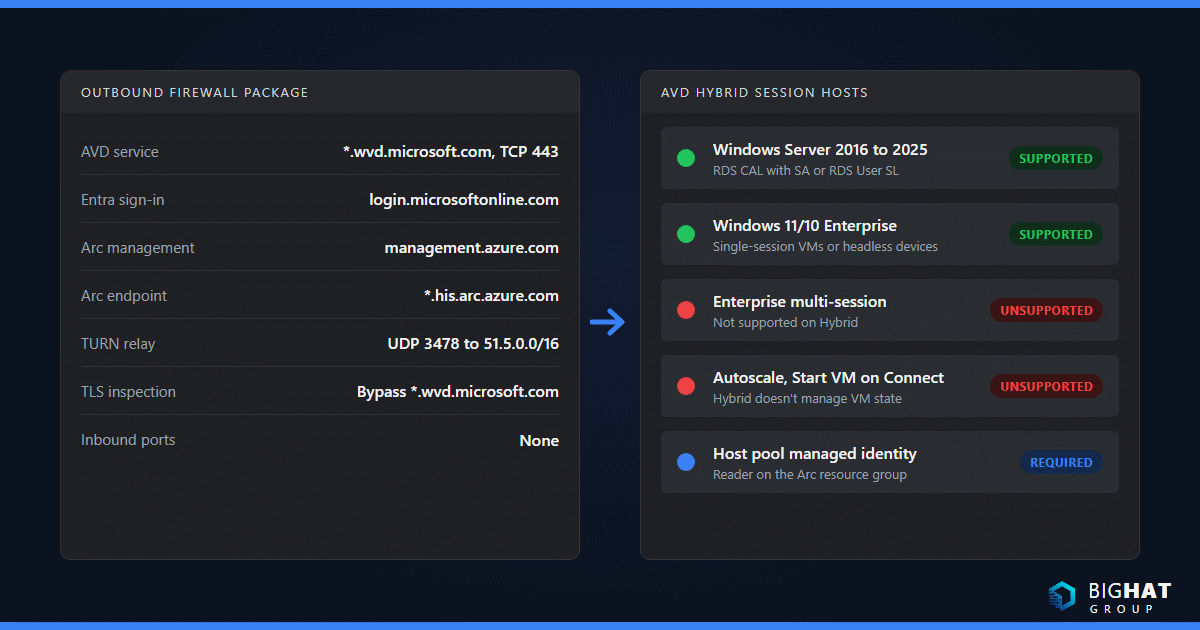
| Windows Server 2025, 2022, 2019, 2016 | RDS Client Access License (CAL) with Software Assurance (per user or per device), or RDS User Subscription Licenses | Virtual machines and headless physical servers |
| Windows 11 Enterprise, Windows 10 Enterprise (single-session) | Microsoft 365 E3, E5, A3, A5, F3, Business Premium, Student Use Benefit; Windows Enterprise E3, E5; Windows Education A3, A5; Windows VDA per user; per-user access pricing for external commercial use only | Virtual machines; physical devices only as dedicated, headless session hosts (rack-mounted or similar). Laptops and personal PCs are not supported |
| Windows 11 or Windows 10 Enterprise multi-session | Not supported on Azure Virtual Desktop Hybrid | Not supported |
The hypervisor is your choice. Microsoft’s wording is “your preferred on-premises hypervisor that supports Windows virtual machines”, and the Arc agent’s own prerequisites page lists VMware (including Azure VMware Solution), Azure Local and “other cloud environments” as supported, with one explicit exclusion: do not install the Arc agent on virtual machines already running in Azure, Azure Stack Hub or Azure Stack Edge.
What Hybrid does not do
This is the paragraph that decides most designs. From the overview: “Azure Virtual Desktop Hybrid doesn’t provision or manage virtual machine state, so the following capabilities aren’t supported: Power management, Autoscale, Start VM on Connect, Session Host Configuration.” The sentence after it assigns the work to you: “Organizations are responsible for deploying and managing their on-premises session hosts using hypervisor tools, scripts, partner solutions, or other tools.”
Compare that with Azure Virtual Desktop on Azure Local, the other on-premises option. Azure Local supports Windows 11 Enterprise multi-session, portal-driven session host provisioning and Azure Marketplace images, but it requires the Azure Local stack and is “not supported as a standalone service outside of Azure, in a multicloud environment, or on other Azure Arc-enabled servers.” Hybrid is the inverse trade: any hardware and any hypervisor, in exchange for doing your own lifecycle management and giving up multi-session.
Prerequisites and licensing
Azure and Azure Arc prerequisites
The deployment article layers the Hybrid requirements on top of the standard AVD ones:
- The Microsoft.DesktopVirtualization resource provider must be registered in the subscription, and whoever builds the host pool needs the Desktop Virtualization Contributor role.
- Session hosts must reach the Azure Virtual Desktop required URLs and the Azure Arc network endpoints (both covered in the networking section).
- The Azure Arc Connected Machine agent must be installed and configured on every session host.
- The host pool must be a standard host pool with no virtual machines added through the Azure wizard, and it must have a managed identity assigned on the Identity tab. Microsoft adds an Important callout: “Azure Virtual Desktop Hybrid does not support Session Host Configuration.”
- The host pool’s managed identity needs Reader on the resource group that contains the Arc-enabled servers. Microsoft warns that “if the managed identity doesn’t have Reader access to the Arc resource group, a future release will prevent session hosts from becoming available.” Do it on day one.
On the Arc side, the prerequisites page requires the Microsoft.HybridCompute, Microsoft.GuestConfiguration and Microsoft.HybridConnectivity resource providers, and the Azure Connected Machine Onboarding (or Contributor) role on the resource group for whoever runs the onboarding. If Group Policy customizes the “Log on as a service” right, NT SERVICE\himds must be on the list or the agent will not start.
Identity and join requirements
The deployment article is specific about join types, and it is the detail most likely to surprise a Windows Server shop:
- Windows client session hosts (Windows 11 or 10 Enterprise) can be Microsoft Entra joined, Active Directory Domain Services joined, or Microsoft Entra hybrid joined.
- Windows Server session hosts must be AD DS joined or hybrid joined. “Microsoft Entra ID-only join is not supported due to the Remote Desktop Services (RDS) licensing server dependency.”
Users themselves must exist in Microsoft Entra ID. The identities and authentication article rules out identities that live only in AD DS, supports hybrid identities synchronized with Microsoft Entra Connect, and supports cloud-only identities on Entra joined hosts. Microsoft recommends single sign-on with Microsoft Entra authentication for Entra joined and hybrid joined hosts. If you rely on smart cards or Windows Hello for Business for the session sign-in, those use Kerberos, which means the client needs line of sight to a domain controller or a KDC proxy. For on-premises hosts serving on-premises users this is usually already true; for remote users it is a design item.
Licensing: three layers
Microsoft summarizes Hybrid licensing as “user entitlement and Azure Virtual Desktop Hybrid service user license.” I break it into three layers when I build a cost model:
- OS user entitlement. The table above. For Windows Server hosts, note the Software Assurance requirement on RDS CALs; a plain RDS CAL without active SA does not qualify. The general AVD licensing article adds that per-user access pricing is for external commercial purposes only and is not available for Windows Server operating systems.
- Azure Virtual Desktop Hybrid service fee. The Azure Virtual Desktop pricing page describes it as “a per user per month fee for running Azure Virtual Desktop session hosts on premises” that covers management and orchestration, and tells you to contact your Microsoft account team to purchase it. When I checked, no dollar amount was shown, so I will not quote one here. Get it in writing before you model the business case.
- Azure Arc add-ons. The Azure Arc pricing page lists the core control plane (inventory, manage, VM self-service) as free, and charges for add-on services when enabled. Azure Policy guest configuration and Change Tracking are listed at USD 6 per server per month; Update Manager, Defender for Servers and log ingestion are separate meters. Customers with Windows Server licenses under active Software Assurance get Update Manager, Change Tracking, Machine Configuration and Windows Admin Center at no additional cost, which matters because your Windows Server hosts probably already carry SA to satisfy the RDS CAL rule.
What does not change: Windows Server itself still needs an operating system license (the pricing page footnote says so), and the Windows 11 or 10 Enterprise entitlement is carried by the user, not the hardware.
Networking and the identity path
Outbound endpoints
Everything is outbound. The required FQDNs and endpoints article states “All entries are outbound; you don’t need to open inbound ports for Azure Virtual Desktop”, and the Arc network requirements article says the Connected Machine agent “securely communicates outbound to Azure Arc over TCP port 443”. Microsoft also says plainly that it does not support deployments where the AVD endpoints are blocked.
The AVD list for session hosts includes login.microsoftonline.com (TCP 443), *.wvd.microsoft.com (TCP 443, service traffic including TCP-based RDP), *.prod.warm.ingest.monitor.core.windows.net and gcs.prod.monitoring.core.windows.net (agent traffic), mrsglobalsteus2prod.blob.core.windows.net (agent and side-by-side stack updates), several certificate endpoints on TCP 80, and *.windows.cloud.microsoft, *.service.windows.cloud.microsoft and *.windows.static.microsoft for service traffic. The Arc list adds management.azure.com, *.his.arc.azure.com, *.guestconfiguration.azure.com, guestnotificationservice.azure.com, *.servicebus.windows.net, pas.windows.net, *.login.microsoft.com and download.microsoft.com, with service tags AzureActiveDirectory, AzureTrafficManager, AzureResourceManager, AzureArcInfrastructure, Storage and AzureFrontDoor.Frontend.
Two practical notes from running this against real firewalls:
- The two Azure fabric addresses on the AVD list,
169.254.169.254and168.63.129.16, are Azure-internal. On an Arc-enabled host the instance metadata endpoint is unreachable by design; the Hybrid troubleshooting article logs this as expected behavior and the extension falls back to the Arc hybrid metadata service. Do not spend an afternoon trying to route to them. - TLS inspection breaks this. The troubleshooting article documents Authenticode signature failures on the downloaded agent MSIs and WebSocket handshake failures when a proxy rewrites traffic to
*.wvd.microsoft.com. Put the AVD URLs on the bypass list.
If your proxy team pushes back on the length of the Arc list, Azure Arc gateway reduces the Arc-specific allowances to seven FQDNs, with the caveat that it is for the Azure public cloud only and is not recommended where TLS termination is required.
RDP Shortpath and latency
The user experience argument for Hybrid is latency: the session host sits next to the user and the application back end. To get that benefit you want the session over UDP. RDP Shortpath always starts with a TCP reverse-connect transport through the AVD gateway in Azure, then tries to establish UDP; if UDP succeeds the TCP path is dropped, otherwise TCP remains as the fallback.
- Users on the same network as the hosts (the data-residency and branch patterns below) are the managed-networks case: a direct UDP connection, either via the RDP Shortpath listener on port 3390 or via STUN with no inbound port. This is where Hybrid shines, because the TCP fallback would route a desk-to-desk session out to Azure and back.
- Remote users use RDP Shortpath for public networks: a direct STUN connection where NAT allows it, otherwise a relayed TURN connection through
51.5.0.0/16on UDP 3478. Microsoft notes the TURN relay is selected by the client’s physical location and that if UDP is blocked the session falls back to TCP. Allow outbound UDP 3478 to that range from the session host network and avoid TCP-based VPNs, double NAT and forced tunneling.
FSLogix profile placement
Keep profile storage next to the hosts. Microsoft’s own guidance for the Azure Local flavour of on-premises AVD recommends an SMB share on the same network as the session hosts and, for larger deployments, a share external to the cluster so storage and compute scale independently; the Architecture Center reference adds that “network performance and latency are crucial” for the profile share. The same physics apply to Hybrid: a session host in Calgary mounting a profile VHDX from Azure Files in Canada Central adds round trips to every sign-in.
The FSLogix storage comparison covers Azure Files, Azure NetApp Files and Storage Spaces Direct, and all FSLogix containers work on any SMB share. For Hybrid hosts that are AD DS joined, a Windows file server cluster or NAS with AD-integrated SMB is the natural fit. If your Windows client hosts are Entra joined with cloud-only users, the FSLogix GA for cloud-only and external identities removes the domain controller dependency for Azure Files, but weigh that against the latency point above.
Reference architecture
Components
| Component | Where it runs | Role | Design note |
|---|---|---|---|
| Azure Virtual Desktop service (broker, gateway, host pool, workspace, application group) | Azure, Microsoft-managed | Brokering, user assignment, Windows App feed, diagnostics | Host pool metadata is stored in the Azure geography of the region you choose (or that region alone for a regional host pool) |
| Session host | Your hypervisor or physical server | Runs the Windows session; hosts the RD Agent, side-by-side stack and Arc extension | Windows Server or Windows 11/10 Enterprise single-session |
| Azure Arc Connected Machine agent | On each host; projected as a Microsoft.HybridCompute/machines resource | Machine identity, extension management, policy | Heartbeats every five minutes; outbound 443 only |
| Azure Virtual Desktop Hybrid extension | On each host | Installs AVD components, enables RDSH or RDP, registers with the host pool | Microsoft.AzureVirtualDesktop.CloudDeviceExtension |
| Host pool managed identity | Azure | Lets the host pool read Arc machine resources | Reader on the Arc resource group |
| Identity | Microsoft Entra ID plus AD DS | Service authentication in Entra; session sign-in via SSO, Kerberos or NTLM | Windows Server hosts require AD DS or hybrid join |
| Profiles | SMB share near the hosts (file server, NAS, or Azure Files) | FSLogix profile containers | Latency to the share decides sign-in time |
| Images and provisioning | Your tooling: hypervisor templates, Configuration Manager, scripts, partner products | Build, clone, patch and retire hosts | Arc agent can be in the golden image but must not be connected |
| Monitoring | Azure Monitor, Log Analytics, Azure Virtual Desktop Insights | Diagnostics, performance counters, event logs | Azure Monitor Agent installed as an Arc extension |
Pattern 1: data-residency-driven on-premises hosts
A regulated organization (I see this most with Canadian public sector, healthcare and financial services) keeps session hosts, the profile share and the line-of-business data in its own datacenter, with users mostly on the corporate network. Hosts are Windows Server with RDS CALs under SA for density, AD DS joined, using RDP Shortpath for managed networks. Be honest with your privacy office: Microsoft’s Azure Local guidance says that even with session hosts on-premises “some customer data, diagnostic data, and service-generated data is still stored in Azure”, and the host pool’s metadata is stored in Azure, in the geography associated with the region you chose for the host pool (or in that single region only if you create a regional host pool where Microsoft offers one).
Pattern 2: hardware reuse during a legacy VDI exit
A mid-market organization on Citrix or Omnissa Horizon with two or three years left on its vSphere or Nutanix hardware replaces the broker first: the same VMs are Arc-enabled and registered to AVD host pools, Windows App replaces the legacy client, and the legacy control plane is retired. New capacity is built in Azure as hardware ages out, and the cutover is per host pool rather than a forklift. Keep the host pools separate per location; Microsoft’s Azure Local guidance prohibits mixing Azure and Azure Local hosts in one pool, and I apply the same discipline to Hybrid pools for load balancing and troubleshooting sanity.
Pattern 3: hosts in another cloud
The Arc agent runs in “other cloud environments” and records AWS and GCP instance metadata when it finds it, so a Windows VM in another cloud can be an AVD session host too. The use case is narrower than it sounds: a workload that must stay next to a database or licensing server in that cloud, or an organization consolidating two desktop brokers into one. Model the egress charges for the TCP fallback path and the TURN relay, and remember the exclusion the other way: Azure VMs are not Arc-enabled, they are simply added to a host pool the normal way.
Step by step: from a bare Windows machine to an Available session host
1. Prepare the host pool
Create a standard pooled or personal host pool in the Azure portal without adding session hosts, assign a managed identity on the Identity tab, create or reuse a workspace and an application group, and grant the host pool identity Reader on the Arc resource group:
$hostPool    = Get-AzWvdHostPool -Name "<HostPoolName>" -ResourceGroupName "<HostPoolResourceGroup>"
$principalId = $hostPool.IdentityPrincipalId

New-AzRoleAssignment -ObjectId $principalId -RoleDefinitionName "Reader" -ResourceGroupName "<ArcServersResourceGroup>"
2. Build and Arc-onboard the machine
Deploy the VM or physical server with your normal tooling. The deployment article names scripts, Configuration Manager, hypervisor management software and third-party tools, and the only requirement is “a running Windows machine”. Two rules from the Arc agent overview matter for VDI builds:
- You can install the
azcmagentpackage into a golden image, but do not runazcmagent connectin the image. Clones of a connected image share one Azure resource ID and end up disconnected with 429 errors. - Onboard each clone after deployment with your automation. Confirm with
azcmagent showthat Agent Status is Connected and the Tenant ID field is populated; the troubleshooting article lists a missing tenant ID as a hard block on registration.
3. Register the host with the host pool
Generate a registration key (valid up to 27 days) and install the extension with the token in protected settings. The portal path is Azure Arc > Infrastructure > Machines > your machine > Settings > Extensions > Add > Azure Virtual Desktop Hybrid, then pick the subscription, resource group and host pool. In PowerShell, with the Az.DesktopVirtualization and Az.ConnectedMachine modules:
$expiresUtc = (Get-Date).ToUniversalTime().AddHours(24).ToString("yyyy-MM-ddTHH:mm:ss.fffffffZ")
$regInfo    = New-AzWvdRegistrationInfo -ResourceGroupName $HostPoolRG -HostPoolName $HostPoolName -ExpirationTime $expiresUtc
$token      = $regInfo.Token

$protectedSettings = @{ registrationToken = $token }

New-AzConnectedMachineExtension -Name 'Microsoft.AzureVirtualDesktop.CloudDeviceExtension' -ResourceGroupName '<ResourceGroupName>' -MachineName '<MachineName>' -Location '<Azure Region>' -Publisher 'Microsoft.AzureVirtualDesktop' -ExtensionType 'CloudDeviceExtension' -ProtectedSetting $protectedSettings
On Windows Server the extension installs the Remote Desktop Session Host role, and Microsoft’s tip is blunt: the extension “will reboot the session host if it installs the RDSH role on Windows Server”, so pre-install the role in your image to avoid the reboot during registration. On Windows 11 it simply enables RDP.
4. Validate
The extension reports Succeeded under the machine’s Extensions blade. Then, per Microsoft, “it may take up to 15 minutes for the session host to report available in the host pool”. Check from the host pool:
Get-AzWvdSessionHost -ResourceGroupName "<Resource Group>" -HostPoolName "<HOST POOL>"Assign users to the application group, sign in with Windows App, and confirm the transport in the connection information dialog shows UDP when you expect it to. If registration fails, the extension log at C:\ProgramData\GuestConfig\extension_logs\Microsoft.AzureVirtualDesktop.CloudDeviceExtension\ tells you which of the six phases broke; search for [Fatal]. The common causes documented by Microsoft are a malformed proxy URL in the Arc agent configuration, an expired or cross-tenant registration token (“Cross-tenant registration is not permitted”), the broker at *.wvd.microsoft.com:443 being unreachable, a TLS-inspecting proxy, and NAME_ALREADY_REGISTERED when a stale host with the same name is still in the pool.
Operations
Patching and image updates
Microsoft’s Windows update management methodologies for session hosts splits the world into patch-in-place and image-based servicing, and for Hybrid the choice is largely made for you. The image-based options (session host update, Azure Compute Gallery) depend on Azure provisioning that Hybrid does not have, so you are patching in place or rebuilding through your own pipeline:
| Monthly update method | Windows Server hosts | Windows client Enterprise hosts |
|---|---|---|
| Azure Update Manager (via Arc) | Recommended | Not supported |
| Windows Update / Windows Autopatch | Supported / Not supported | Recommended / Recommended |
| Configuration Manager | Supported | Supported |
Azure Update Manager patches Arc-connected machines within customer-defined maintenance windows, which for Windows Server pools is exactly the drain-then-patch cadence you want. For OS version upgrades Microsoft’s recommendation is a new VM from a new image rather than in-place upgrade, so keep the golden-image pipeline alive even if monthly patching is in place.
Monitoring
Azure Virtual Desktop Insights needs diagnostic settings on the host pool and workspace, a Log Analytics workspace, and the Azure Monitor Agent with a data collection rule on every session host. The Azure Monitor Agent explicitly supports on-premises and other-cloud machines through Azure Arc, installed as a VM extension, so the Insights workbook works for Hybrid hosts. Budget for Log Analytics ingestion; the agent itself is free. Add Azure Resource Health alerts on the Arc machines: an Arc-enabled server that stops heartbeating for more than 15 minutes is offline, blocked or has a stopped agent, and that is usually your first signal that a hypervisor host has a problem.
Scaling and what you lose
No autoscale means no scaling plan powering hosts off overnight, no Start VM on Connect for personal desktops and no dynamic autoscaling creating hosts for a Monday ramp-up. Size for peak, use drain mode and the host pool load-balancing settings for maintenance, and treat partner orchestration (the preview post discussed the partner ecosystem) as part of the solution cost if you need schedule-based power management.
Cost comparison versus Azure-hosted session hosts
I keep this qualitative because the Hybrid service fee is not published and your hardware costs are yours alone, but the components are documented:
| Cost component | Azure-hosted session hosts | Hybrid session hosts |
|---|---|---|
| User access rights | Eligible Windows or Microsoft 365 license, RDS CAL with SA, or per-user access pricing for external users | Same entitlements; per-user access pricing is external-only and not available for Windows Server |
| Service fee | None beyond infrastructure | Azure Virtual Desktop Hybrid per-user, per-month fee (amount via account team) |
| Compute, storage, network | Azure VMs, disks and egress, pay-as-you-go or reserved; Windows 11/10 single-session and multi-session VMs billed at Linux compute rates | Your hardware, hypervisor licensing, power, cooling and datacenter space |
| Elasticity | Autoscale turns off idle hosts | None; capacity is a sunk cost whether used or not |
| Azure Arc | Not applicable | Control plane free; add-ons such as Azure Policy guest configuration (USD 6 per server per month) or Update Manager billed when enabled unless covered by Windows Server SA |
| Monitoring | Log Analytics ingestion | Log Analytics ingestion |
| Density | Windows 11 multi-session available | Windows Server RDSH only; one VM per user on Windows 11 |
The honest summary: Hybrid wins when the hardware is already paid for and the data cannot leave, or when latency to an on-premises back end dominates. Azure wins when you need elasticity, multi-session density or a small operations team. If you are weighing a per-user Cloud PC instead, my Windows 365 versus Azure Virtual Desktop comparison covers that fork.
When not to use Azure Virtual Desktop Hybrid
- You need Windows 11 multi-session density. Use Azure or Azure Local; Hybrid is single-session on client OS.
- You want elastic cost. No autoscale and no Start VM on Connect means your on-premises hosts cost the same at 3 a.m. as at 10 a.m.
- Your hosts are ephemeral. Microsoft’s Arc prerequisites say it “doesn’t recommend running Azure Arc on short-lived (ephemeral) servers or virtual desktop infrastructure (VDI) VMs” because Arc does not clean up resources that stop heartbeating, and recreating a VM with the same name collides with the stale resource. Hybrid works with long-lived hosts; a non-persistent, destroy-on-logoff design fights the platform.
- You are Entra-only with Windows Server. Windows Server hosts require AD DS or hybrid join. If retiring domain controllers is the goal, use Windows 11 Enterprise hosts or put the hosts in Azure.
- Your network team cannot allow the endpoints. Microsoft does not support deployments where the AVD URLs are blocked, and TLS inspection of
*.wvd.microsoft.combreaks registration. - The hardware is at end of life anyway. The whole value is reuse. If you are buying new servers to run it, price Azure or Windows 365 first.
What to do about it
- Confirm GA status and the current limitations on the Microsoft Learn Hybrid overview before you present a design; the unsupported list (power management, autoscale, Start VM on Connect, session host configuration) belongs on slide two.
- Inventory user entitlements. Separate Windows Server users (RDS CAL with active SA or RDS User SL) from Windows 11/10 Enterprise users (Microsoft 365 or Windows Enterprise E3/E5, VDA), and flag anyone you planned to serve through per-user access pricing on Windows Server, because that combination is not available.
- Ask your Microsoft account team for the Azure Virtual Desktop Hybrid per-user service fee in writing and add it to the cost model alongside Arc add-ons and Log Analytics ingestion.
- Decide join type per host pool: AD DS or hybrid join for Windows Server, and consider Entra join only for Windows client hosts. Enable single sign-on with Microsoft Entra authentication.
- Submit the firewall change as one package: the AVD session host FQDNs, the Arc endpoints and service tags, outbound UDP 3478 to 51.5.0.0/16, and a TLS-inspection bypass for
*.wvd.microsoft.com. Run the Azure Virtual Desktop Agent URL Tool from a pilot host to prove it. - Register the Arc and Desktop Virtualization resource providers, build the standard host pool with a managed identity, and grant that identity Reader on the Arc resource group before the first host registers.
- Bake the Arc agent and the RDSH role into the golden image without connecting the image to Arc; onboard each clone with automation and verify
azcmagent showreports a tenant ID. - Register a pilot host with the extension, wait for Available, and test both a LAN user and a remote user, checking that the LAN user gets a direct UDP transport.
- Place the FSLogix share on the same network as the hosts and measure sign-in time against your Azure-hosted baseline.
- Wire up Azure Virtual Desktop Insights through the Azure Monitor Agent extension, schedule Azure Update Manager maintenance windows for Windows Server pools, and set Resource Health alerts on the Arc machines.
- Write the exit plan: which host pools move to Azure or Windows 365 as hardware retires, and what the trigger is.
Want the steps above as a printable gate for your pilot? Download the 20-item Azure Virtual Desktop Hybrid readiness checklist.
Send Me the AVD on Arc Checklist
Need a second pair of hands? Big Hat Group provides Azure Virtual Desktop architecture and deployment consulting for organizations in the United States and Canada, from a two-week Hybrid readiness assessment to a full legacy VDI exit. Book a discovery call to talk through your environment.
Sources
- Azure Virtual Desktop Hybrid overview, Microsoft Learn
- Deploy Azure Virtual Desktop Hybrid on-premises, Microsoft Learn
- Troubleshoot Azure Virtual Desktop Hybrid session host onboarding, Microsoft Learn
- What’s new in Azure Virtual Desktop, Microsoft Learn
- Required FQDNs and endpoints for Azure Virtual Desktop, Microsoft Learn
- Connected Machine agent network requirements, Microsoft Learn
- Connected Machine agent prerequisites, Microsoft Learn
- Overview of the Azure Connected Machine agent, Microsoft Learn
- Simplify network configuration requirements with Azure Arc gateway, Microsoft Learn
- RDP Shortpath, Microsoft Learn
- Azure Virtual Desktop identities and authentication, Microsoft Learn
- Licensing Azure Virtual Desktop, Microsoft Learn
- Azure Virtual Desktop pricing, Microsoft Azure
- Azure Arc pricing, Microsoft Azure
- Azure Virtual Desktop on Azure Local, Microsoft Learn
- Azure Virtual Desktop for Azure Local reference architecture, Azure Architecture Center
- Storage options for FSLogix profile containers, Microsoft Learn
- Configure managed identity in Azure Virtual Desktop, Microsoft Learn
- Windows update management methodologies for session hosts, Microsoft Learn
- Azure Update Manager overview, Microsoft Learn
- Azure Monitor Agent overview, Microsoft Learn
- Enable Insights to monitor Azure Virtual Desktop, Microsoft Learn
- Autoscale scaling plans and example scenarios, Microsoft Learn